
How to Export Heart Rate Data from Apple Health
Last updated: April 19th, 2026

By Martin
Co-founder, vitalina
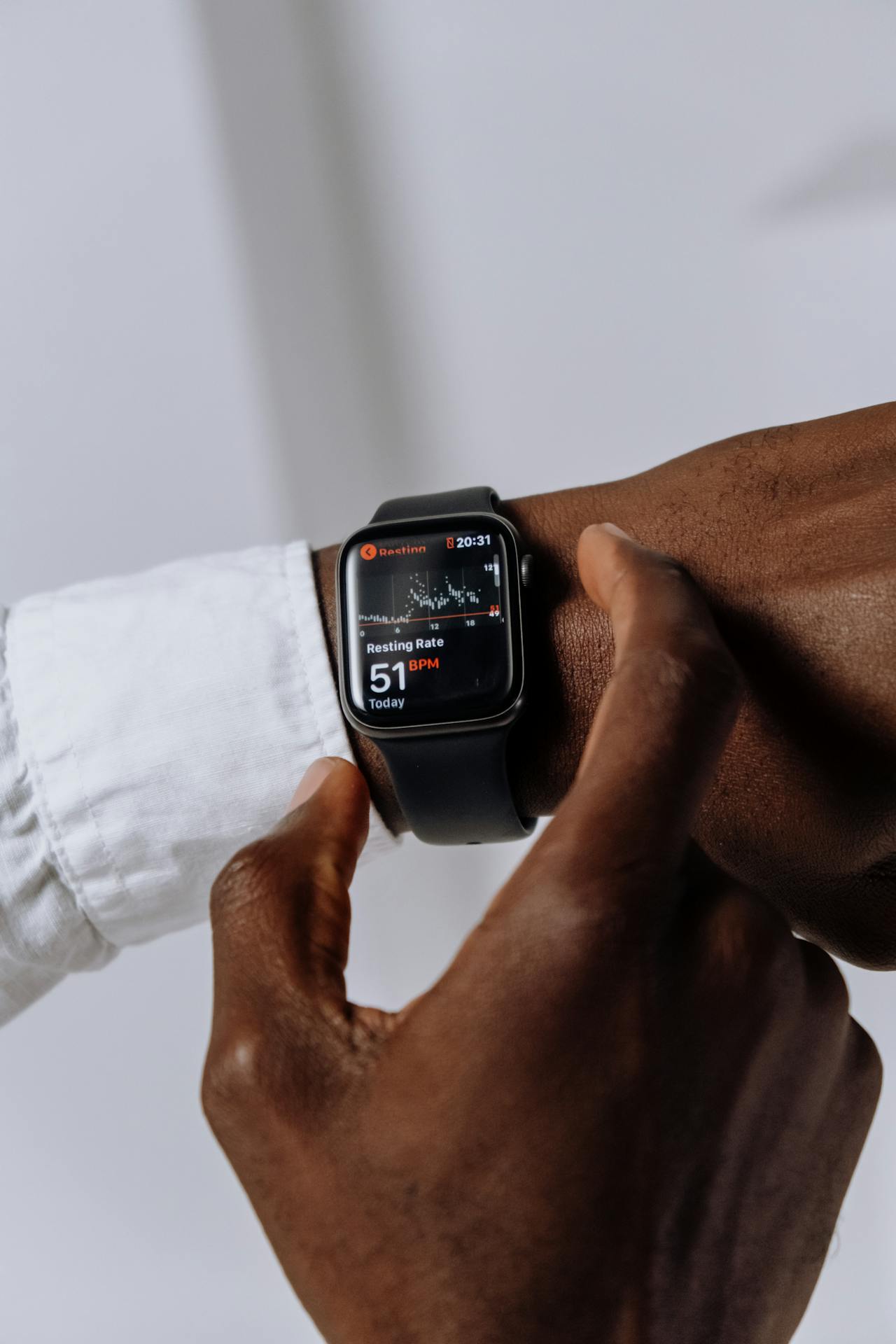
Apple Health records every heart rate sample your Apple Watch, chest strap, or gym equipment captures - often thousands of data points per day. But when your cardiologist, sports medicine doctor, or GP asks for your heart rate history, getting that data out in a usable format is not straightforward.
This guide shows you how to export your heart rate history as a clean PDF or CSV file using vitalina, a free iPhone app that reads your Apple Health data and generates doctor-ready reports in under two minutes.
Why Apple Health's built-in export does not work for heart rate
Apple Health does let you export your data as XML, but the result is a single file containing every health data point your iPhone has ever recorded. There is no way to filter by metric, so your heart rate samples are buried alongside steps, sleep, nutrition, and everything else. There is also no date range control - you cannot ask for just the last three months. The file is not readable by a human, and there are no charts or summaries.
Apple doesn't hand you the XML directly either. You get an Export.zip archive that you have to unzip on a computer. Inside is a folder called apple_health_export, and the full Export.xml sits inside it alongside supporting files. For long-time Apple Watch users that XML can easily reach 2.9 GB - 11 years of continuous health data in one file.
Heart rate is especially painful: an Apple Watch can record a reading every few minutes all day long, so a few months of history quickly turns into hundreds of thousands of samples. The resulting XML is not something you can email to your cardiologist or review before an appointment.
vitalina solves this by reading your Apple Health data locally on your iPhone and letting you export just your heart rate data - for any date range you choose - as a PDF or CSV.
What you'll need
- An iPhone running iOS 18 or later
- Heart rate data recorded in Apple Health (from an Apple Watch, chest strap, connected gym equipment, or a compatible third-party app)
The walkthrough · 8 steps · ~2 min
How to export heart rate data, step by step
Download vitalina
Download vitalina from the App Store. It's free to use with no account or sign-up required.
Allow access to Apple Health
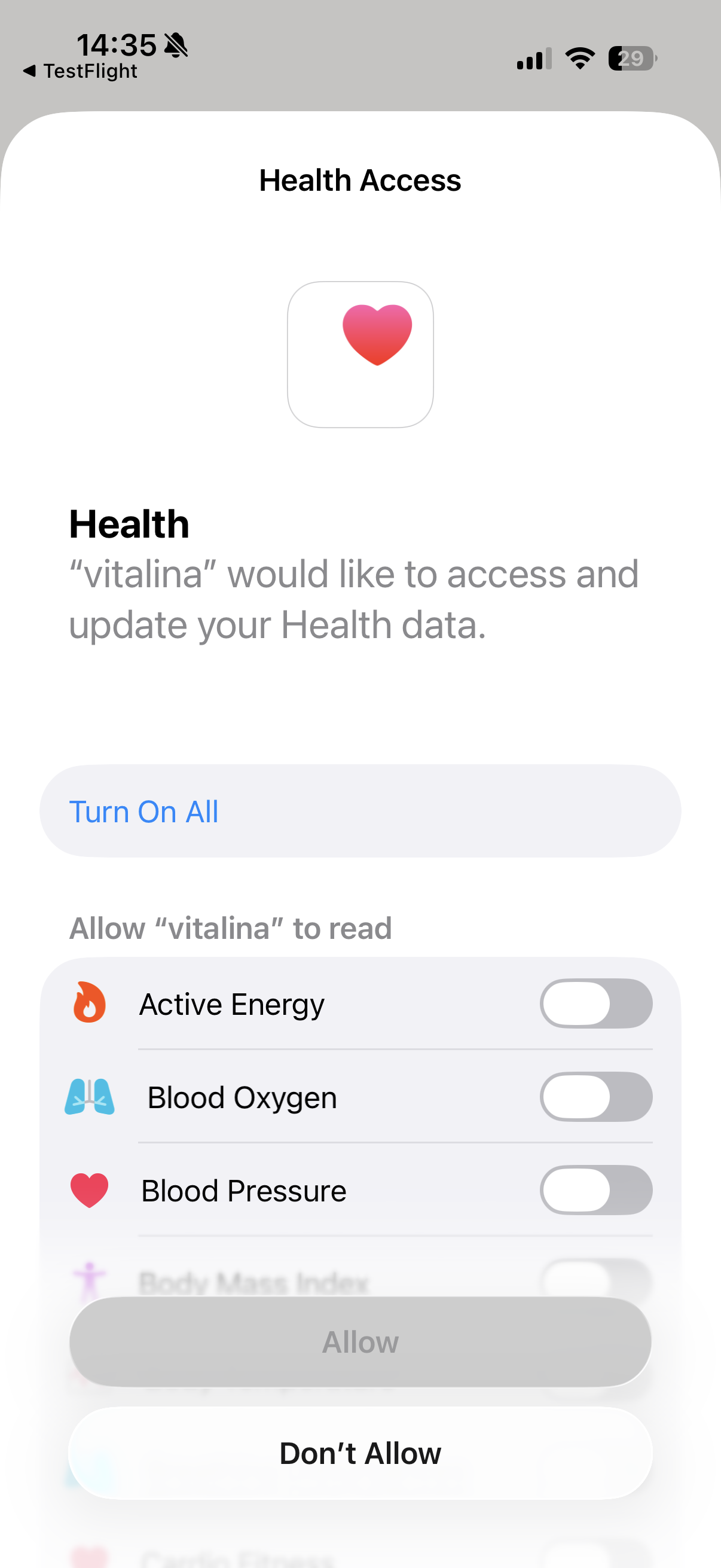
When you first open vitalina, tap Allow Health Access and confirm the permissions in the Apple Health prompt. vitalina only requests read access - it cannot modify or delete your health data.
Your data never leaves your device. vitalina processes everything locally on your iPhone with no cloud uploads, no tracking, and no analytics.
Tap the "Heart Rate Data" quick export
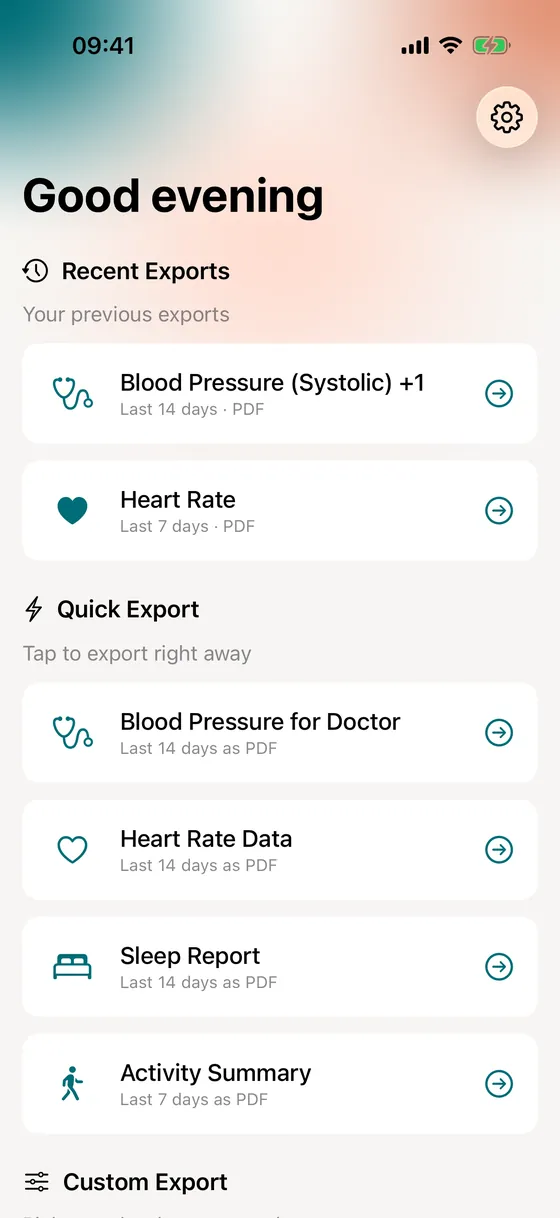
On the main screen, you'll see a set of one-tap Quick Export templates. Tap Heart Rate Data to export your heart rate for the last 14 days as a PDF, ready to share. How Quick Exports work.
The template includes heart rate only. To add resting heart rate or HRV, or for full control over the date range and format, tap Create Custom Export instead. The rest of this guide walks through the custom export flow.
Select your heart rate metrics
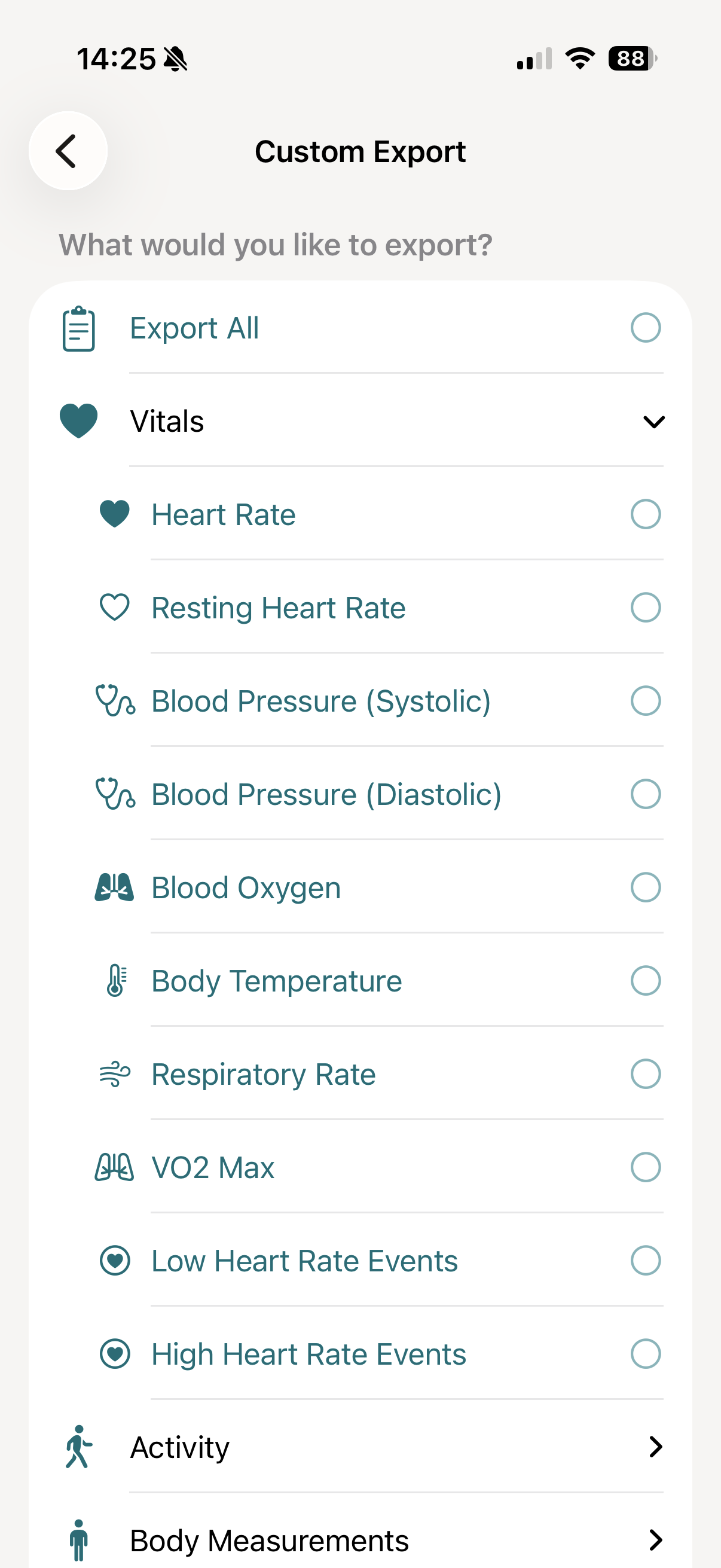
In a custom export, you'll see all available health metrics grouped by category. Under Vitals, select Heart Rate and Resting Heart Rate. These are the two core metrics your doctor will want to see.
Depending on what your cardiologist has asked for, you may also want to add related metrics:
- Heart Rate Variability (HRV) - useful for stress and recovery tracking
- Walking Heart Rate Average - a good indicator of cardiovascular fitness over time
- Low Heart Rate Events and High Heart Rate Events - Apple Watch notifications that can be relevant for arrhythmia review
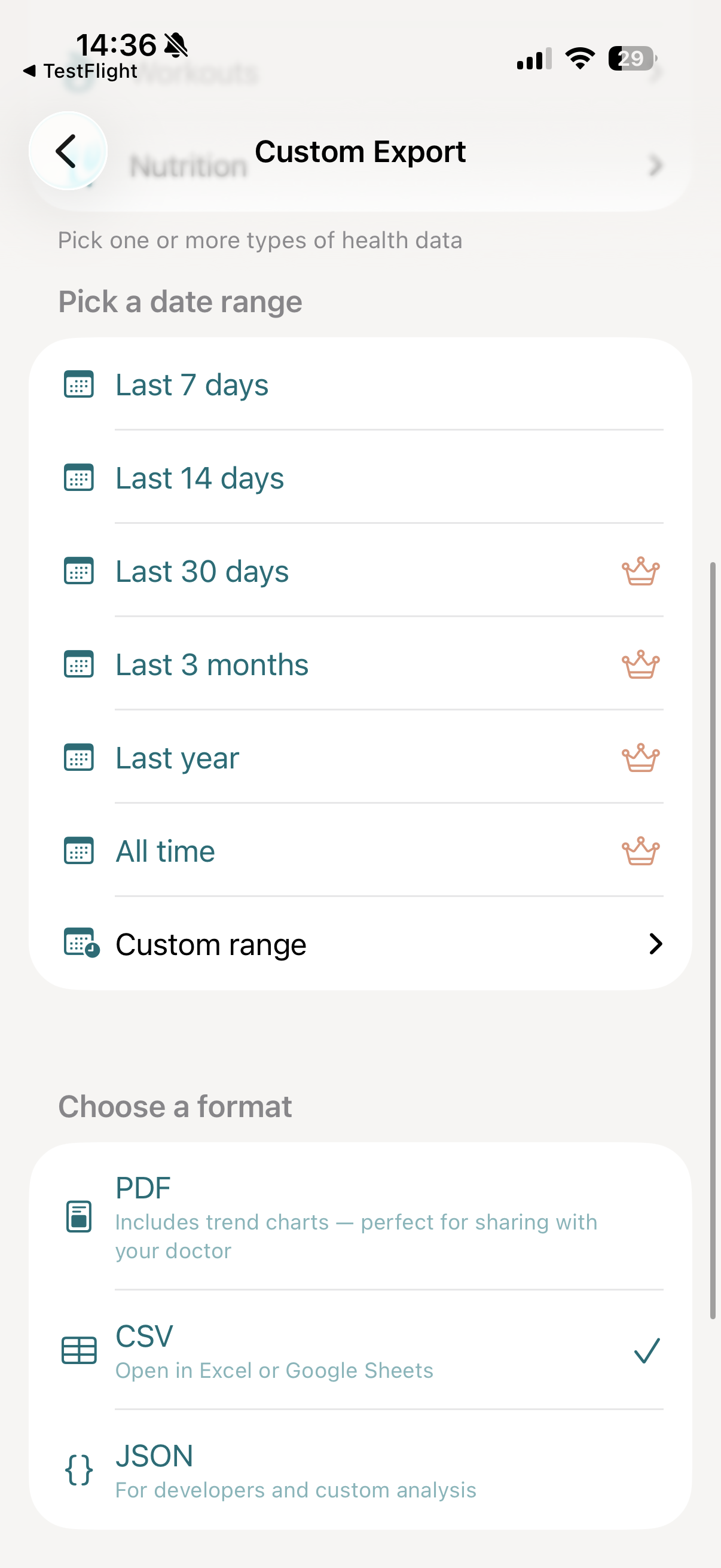
Pick a date range
This is where vitalina makes a real difference over Apple's native export. You can choose exactly how far back to go:
- Last 7 days and Last 14 days - available for free
- Last 30 days, 3 months, 1 year, and All time - available with vitalina Pro
- Custom date range - pick any exact start and end date with Pro
If your cardiologist or sports medicine doctor has asked for several months of heart rate history - for example to review resting heart rate trends, post-surgery recovery, or training load - the Pro upgrade is a one-time purchase that unlocks all extended date ranges.
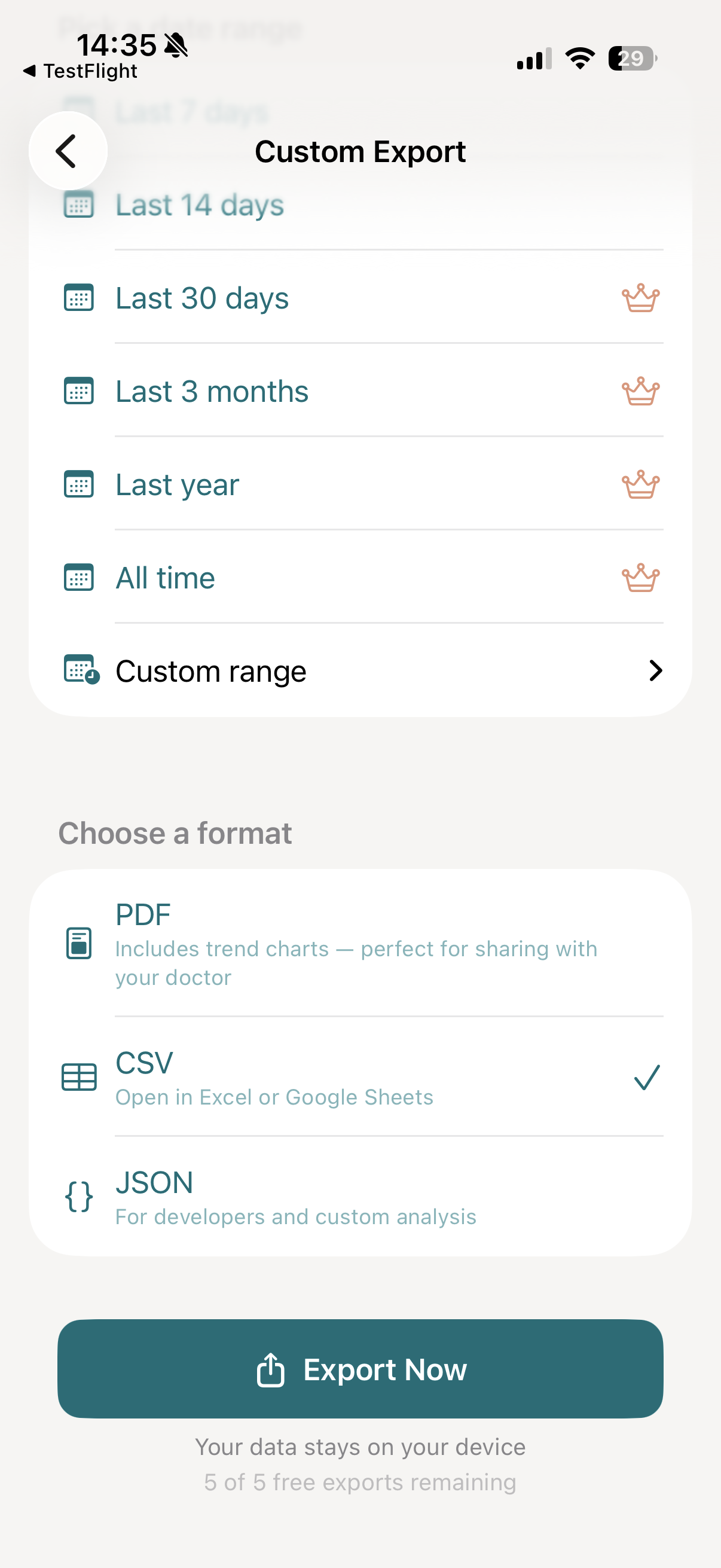
Choose your export format
For heart rate, two formats are most useful:
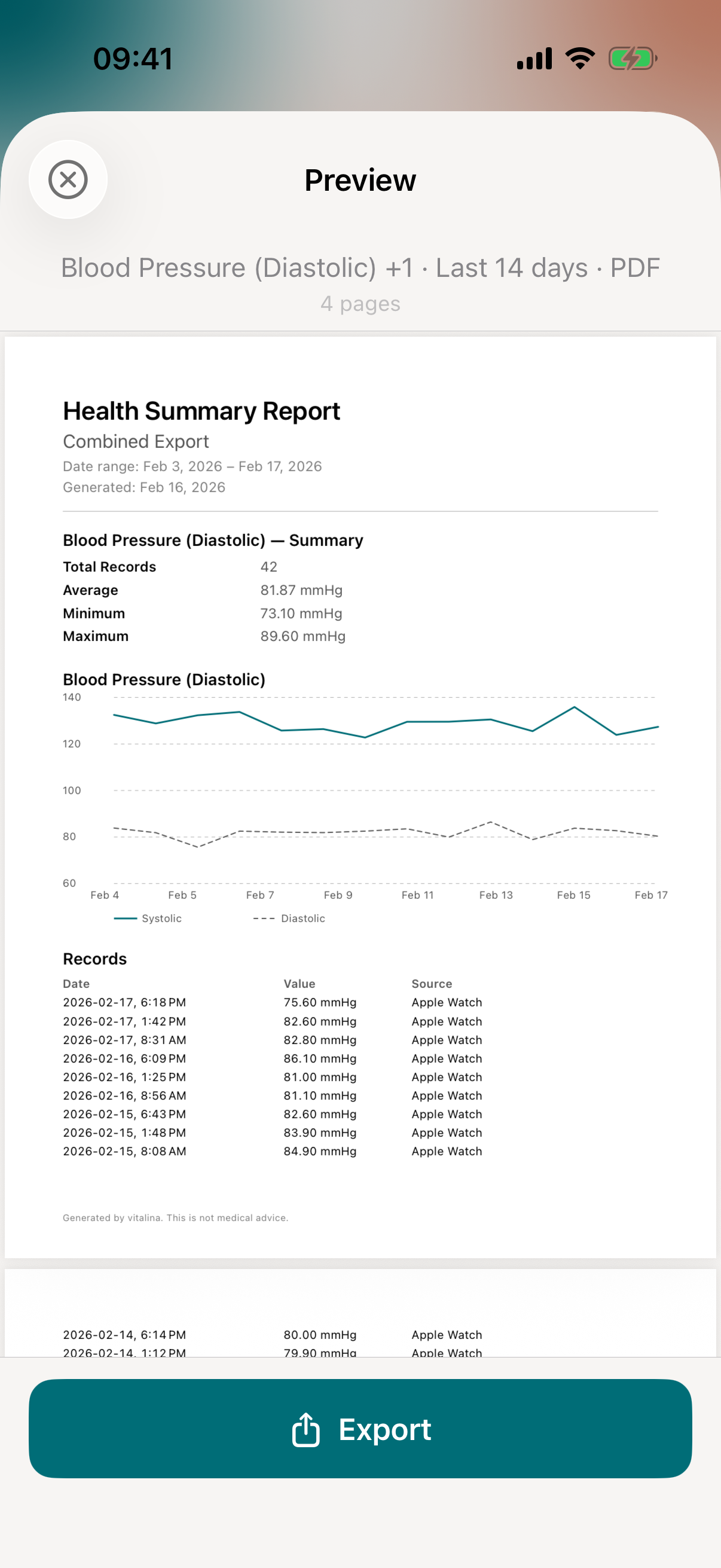
- PDF: The best format for doctor appointments. Includes a trend chart for heart rate and resting heart rate over time, a full table of readings with timestamps, and clean formatting your cardiologist can read without any technical knowledge. You can email it, AirDrop it, or print it before your appointment.
- CSV: Opens in Excel or Google Sheets. Ideal for beat-by-beat analysis, comparing training periods, or when your doctor wants to import the raw samples into another tool.
Both formats are available for free.
A readable chart, not a wall of numbers. Apple Health shows a dense table of heart-rate samples - vitalina's PDF turns them into a trend chart your cardiologist or sports-medicine doctor can read at a glance.
Want to build your own custom graph instead? Export to CSV and let an AI assistant chart it for you - our ChatGPT prompts guide shows exactly what to ask to turn your readings into a meaningful graph.
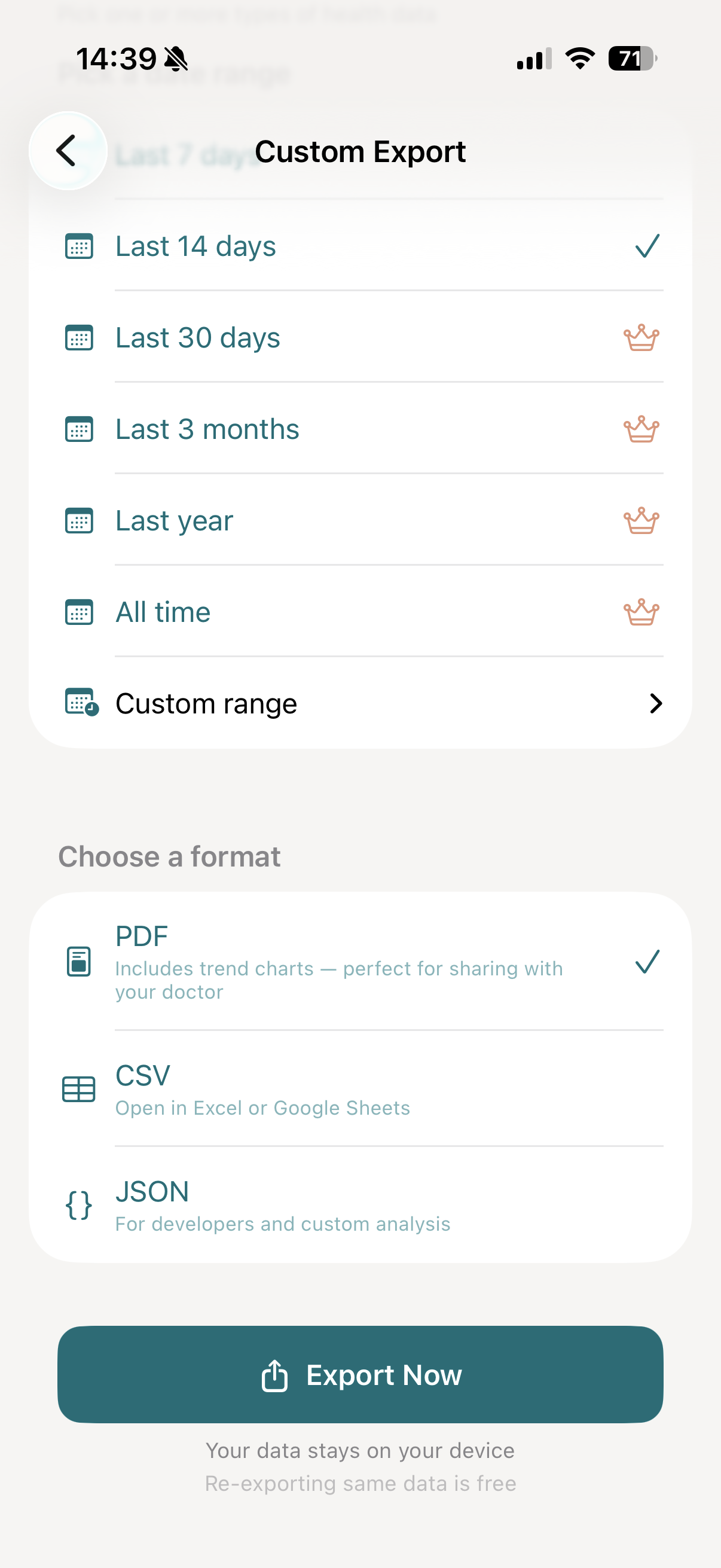
Tap "Export Now"
Tap Export Now. vitalina reads your heart rate data from Apple Health, formats the export, and generates your file - usually within a few seconds, even for a year of continuous Apple Watch recordings.
Share with your doctor
Once your export is ready, you'll see a full preview of the file. From here, tap Export to open the iOS share sheet, where you can:
- Email it to your cardiologist or care team before your appointment
- AirDrop or share via Messages to anyone nearby
- Save to Files on your iPhone or iCloud Drive
- Print a physical copy to bring to the clinic
This is the same flow people use for cardiology visits (AFib history, arrhythmia tracking), post-heart-surgery monitoring, sports medicine and athletic training reviews, stress management check-ins, and medication adjustment appointments (for example when titrating beta blockers).
Which devices record heart rate to Apple Health?
vitalina exports any heart rate data stored in Apple Health, regardless of where it came from. This includes:
- Apple Watch - all models with a heart rate sensor (Series 1 and later, SE, and Ultra)
- Polar chest straps - H9 and H10 via the Polar Beat app
- Wahoo TICKR - chest straps and optical arm bands
- Garmin devices - via Garmin Connect synced through Health Sync or similar bridges
- GymKit equipment - treadmills, ellipticals, and bikes at participating gyms
- Third-party apps - Cardiogram, HeartWatch, and other apps that write to Apple Health
- Manual entries - readings entered by hand in the Health app
If the reading appears in Apple Health under Vitals → Heart Rate (or Resting Heart Rate, Heart Rate Variability, etc.), vitalina can export it.
How much does vitalina cost?
vitalina is free with 5 unique exports and date ranges up to 14 days. vitalina Pro is a one-time purchase from €3.99 (max €4.99 by region, no subscription) that unlocks unlimited exports, extended date ranges up to all time, and Shortcuts automation. Re-exporting the same configuration is always free.
Frequently asked questions
Can you export heart rate data from Apple Health?
Yes. Apple Health stores every heart rate sample but only lets you export everything as an unfiltered XML file. vitalina lets you export just your heart rate data - as a clean PDF or CSV - for any date range you choose.
Can I export more than one month of heart rate history?
Yes, with vitalina Pro. Apple Health's native export has no date filter at all. The vitalina free tier covers up to 14 days; Pro (a one-time purchase) unlocks 30 days, 3 months, 1 year, and all-time history - useful for cardiologist review of longer resting heart rate and HRV trends.
What format is best for sharing heart rate with my cardiologist?
PDF is best for appointments. It includes trend charts and a clean table of readings your cardiologist can read immediately. CSV is better if a specialist wants to do beat-by-beat analysis in Excel, Google Sheets, or another tool.
Is my heart rate data safe when I export it?
Yes. vitalina processes everything locally on your iPhone. Nothing is uploaded to any server. There is no account, no cloud storage, and no analytics on your health data. The file stays on your device until you share it.
Does vitalina work with heart rate data from any device?
Yes. vitalina reads whatever heart rate data is stored in Apple Health - from Apple Watch, Polar and Wahoo chest straps, Garmin devices, GymKit-enabled gym equipment, and third-party apps like Cardiogram or HeartWatch.
Can I print my heart rate data from my iPhone?
Yes. Export your heart rate as a PDF, then tap the share button and choose Print to send it to any AirPrint printer - or save to Files and print from a computer. The PDF includes a trend chart and a table of readings on standard A4 and US Letter paper, ready to bring to your appointment.
What languages does vitalina support?#
vitalina is fully localized in 7 languages - English, German, Spanish, French, Portuguese (Brazil), Japanese, Russian. The app interface and every Apple Health metric name are translated, so your exports come out in your language. This page is in English, but the app follows your device language with no setup required. For example, Heart Rate appears as:
| Language | Heart Rate |
|---|---|
| EnglishEnglish | Heart Rate |
| GermanDeutsch | Herzfrequenz |
| SpanishEspañol | Frecuencia cardíaca |
| FrenchFrançais | Fréquence cardiaque |
| Portuguese (Brazil)Português (Brasil) | Frequência cardíaca |
| Japanese日本語 | 心拍数 |
| RussianРусский | Пульс |
Keep reading
Other Apple Health export guides
Step-by-step tutorials for every metric vitalina can export.
- Export Blood PressureSystolic and diastolic readings for your cardiologist.
- Export Blood GlucoseCGM and fingerstick readings for your endocrinologist.
- Export Sleep DataSleep stages and duration for sleep specialists.
- Export WeightWeight, BMI, and body fat trends for your dietician or GP.
- Export ActivitySteps, distance, and active energy for physical therapy or rehab.
- Export WorkoutsWorkout sessions with duration, calories, and heart rate.
- Export Cycle TrackingPeriod flow, spotting, cramps, and basal body temperature for your OB-GYN.
- Export Calories & NutritionDaily calories, macros, vitamins, and minerals for your dietician or nutritionist.
- Export ECGApple Watch ECG strips with waveform, classification, and average heart rate for your cardiologist.
- Export Mental Health (State of Mind)Apple Health mental health logs with valence, emotion labels, and life-context associations for your therapist or psychiatrist.
- Export SymptomsGeneral Symptoms like fever, cough, and dizziness with their severity for your doctor.
- Export MedicationsYour Apple Health medication list and full dose log for your doctor - iOS 26 and later.
- Export Format ReferenceExact CSV columns and JSON schemas, plus a searchable dictionary of every exportable Apple Health metric.
- Export Apps & DevicesRenpho, Omron, Eight Sleep, Stelo, Flo and more - export data from any app that syncs to Apple Health.
- Export ExcelOpen your Apple Health CSV in Excel and build charts or PivotTables - works on Windows, Mac, and iPad.