
Export Apple Health Data to JSON
Structured data for developers, data scientists, and automated pipelines
Last updated: April 20th, 2026

By Marina
Co-founder, vitalina

Apple Health collects a massive amount of structured data - heart rate samples every few minutes, nightly sleep stages, workout metrics, blood pressure readings, and more. But Apple's only export option is a monolithic XML dump that can be gigabytes in size and painful to parse.
vitalina exports your Apple Health data as clean, structured JSON - pretty-printed with sorted keys, ready to import into Python, R, JavaScript, or any data tool. No cloud upload, no account, everything processed locally on your iPhone.
Why JSON?
JSON (JavaScript Object Notation) is the standard interchange format for structured data. Unlike CSV, JSON preserves nested relationships and typed values - making it ideal for programmatic analysis. vitalina's JSON export gives you:
- Nested structure - sleep stages, heart rate stats, and workout metrics are grouped logically instead of flattened into columns
- Summary statistics - each export includes pre-calculated averages, min/max, and counts so you don't have to compute them yourself
- Pretty-printed with sorted keys - human-readable output you can inspect before processing
- ISO 8601 dates - standard timestamps that every language and tool understands
- Typed values - numbers are numbers, nulls are null, no string-to-number conversion needed
How to export Apple Health data as JSON
Step 1: Download vitalina
Download vitalina from the App Store. It's free with no account or sign-up.
Step 2: Allow access to Apple Health
Tap Allow Health Access and confirm the permissions. vitalina only requests read access - it cannot modify your data. Everything is processed locally on your iPhone.
Step 3: Select the metrics you want
Choose from 100+ health metrics across 11 categories. Select individual metrics or entire categories - vitalina structures the JSON output automatically based on your selection.
Step 4: Pick a date range
Choose Last 7 days or Last 14 days for free, or upgrade to vitalina Pro for 30 days, 3 months, 1 year, all-time history, or a custom date range.
Step 5: Select JSON as your format
In the format picker, tap JSON. This produces a pretty-printed JSON file with sorted keys.
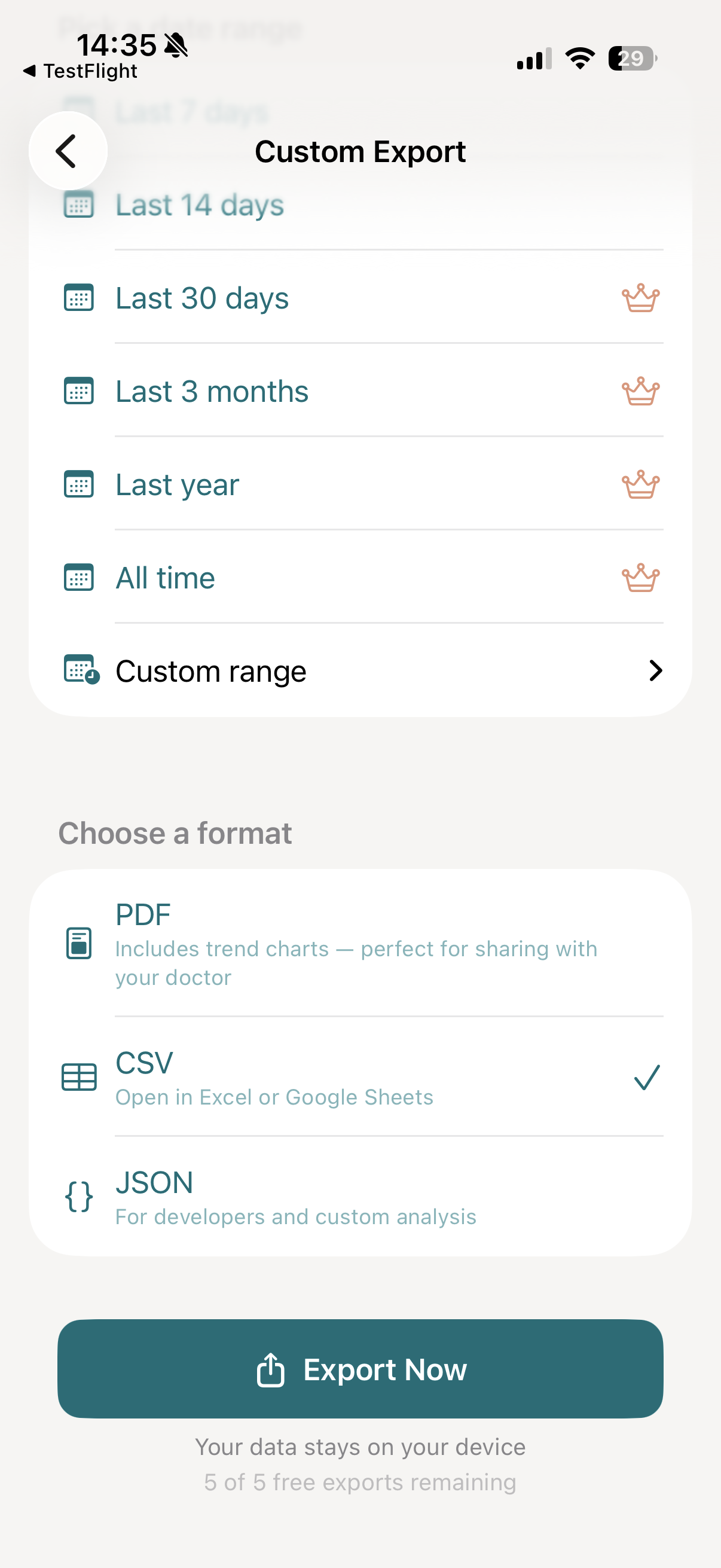
Step 6: Tap Export Now
Tap Export Now. vitalina reads your Apple Health data and generates a structured JSON file - usually within a few seconds, even for months of data.
Step 7: Import into your tool or pipeline
Tap Export to open the iOS share sheet. From there you can:
- AirDrop to your Mac and load into Python, R, or a Jupyter notebook
- Save to Files or iCloud Drive for access across devices
- Email to yourself or a colleague
- Upload to a cloud service for automated pipeline ingestion
JSON output schemas
vitalina uses three JSON schemas depending on the type of health data you export. Each schema includes metadata (export date, version, time window) and the data itself in a structured, nested format.
Health Records
Heart Rate, Steps, Blood Pressure, Weight, and more
{
  "dataType": "Heart Rate",
  "exportDate": "2026-04-20T10:30:00Z",
  "exportVersion": "1.0",
  "summary": {
    "average": 72.5,
    "count": 1440,
    "max": 165.0,
    "min": 52.0,
    "unit": "bpm"
  },
  "timeWindow": {
    "end": "2026-04-21T00:00:00Z",
    "start": "2026-04-14T00:00:00Z"
  },
  "records": [
    {
      "date": "2026-04-20T08:30:00Z",
      "dataType": "Heart Rate",
      "sourceName": "Apple Watch",
      "unit": "bpm",
      "value": 72.0
    }
  ]
}
Sleep Analysis
Nightly sleep sessions with stage breakdowns
{
  "dataType": "Sleep Analysis",
  "exportDate": "2026-04-20T10:30:00Z",
  "exportVersion": "1.0",
  "sessions": [
    {
      "date": "2026-04-19T22:30:00Z",
      "totalSleepDuration": 27000,
      "timeInBed": 28800,
      "remSleep": {
        "duration": 5400,
        "percentage": 20.0
      },
      "deepSleep": {
        "duration": 6750,
        "percentage": 25.0
      },
      "coreSleep": {
        "duration": 14850,
        "percentage": 55.0
      },
      "awakeTime": 1800,
      "sleepHeartRate": 58.0,
      "respiratoryRate": 14.5,
      "sourceName": "Apple Watch"
    }
  ],
  "timeWindow": {
    "end": "2026-04-21T00:00:00Z",
    "start": "2026-04-14T00:00:00Z"
  }
}
Workouts
Workout sessions with performance metrics
{
  "dataType": "Workouts",
  "exportDate": "2026-04-20T10:30:00Z",
  "exportVersion": "1.0",
  "timeWindow": {
    "end": "2026-04-21T00:00:00Z",
    "start": "2026-04-14T00:00:00Z"
  },
  "workouts": [
    {
      "date": "2026-04-19T07:00:00Z",
      "workoutType": "Running",
      "duration": 1935,
      "totalDistance": 5.0,
      "totalEnergyBurned": 340.0,
      "heartRate": {
        "average": 155.0,
        "max": 178.0,
        "min": 120.0
      },
      "cadence": 168.0,
      "elevationGain": 26.0,
      "sourceName": "Apple Watch"
    }
  ]
}
Durations are in seconds. Null fields indicate data was not recorded. All dates use ISO 8601 format. Percentages such as blood oxygen or body fat run from 0 to 100: a value of 97 with unit % means 97 %. In timeWindow, start is inclusive and end is exclusive: the file holds every record from start up to, but not including, end - so the examples above, ending at 2026-04-21T00:00:00Z, cover April 14 through April 20.
What you can build with Apple Health JSON data
- Custom dashboards - build personalized health dashboards with D3.js, Plotly, or Grafana
- Data analysis in Python - load into pandas with
pd.json_normalize()for statistical analysis and visualization - R analysis - parse with
jsonlite::fromJSON()for biostatistics and research - Automated pipelines - ingest into ETL workflows, cloud functions, or database imports
- Machine learning - use as training data for sleep quality prediction, activity classification, or anomaly detection models
- Personal health APIs - serve your own health data through a self-hosted API
JSON vs CSV vs PDF - which format should you use?
JSON - for developers and automation
Best for programmatic access. Preserves nested structure and typed values. Ideal for Python, R, JavaScript, data pipelines, custom dashboards, and machine learning projects.
CSV - for spreadsheets and data analysis
Best when you want to open your health data in Excel, Google Sheets, or Numbers. Flat tabular format, one row per data point. Learn more about CSV export →
PDF - for doctors and appointments
Best when you need to share a report with your doctor. Includes trend charts, formatted tables, and clean layout your care team can read immediately. Learn more about PDF export →
How much does JSON export cost?
vitalina is free with 5 unique exports, all three formats (CSV, PDF, JSON), and date ranges up to 14 days. vitalina Pro is a one-time purchase from €3.99 (max €4.99 by region, no subscription) that unlocks unlimited exports, extended date ranges up to all time, and Shortcuts automation. Re-exporting the same configuration is always free.
Frequently asked questions
Can you export Apple Health data to JSON?
Yes. Apple Health's built-in export only produces an unfiltered XML dump. vitalina lets you pick specific metrics and date ranges and export them as structured, pretty-printed JSON - ready for any programming language or data tool.
What does the JSON export look like?
vitalina exports three JSON schemas: Health Records (individual data points with timestamp, type, value, unit, and source), Sleep Analysis (nightly sessions with stage durations and percentages), and Workouts (sessions with duration, distance, heart rate stats, cadence, and elevation). See the examples above for the exact structure.
Can I use the JSON export with Python?
Yes. Load the file with json.load() or flatten it into a DataFrame with pd.json_normalize(). The structured format with nested objects makes it straightforward to extract exactly the fields you need.
Is the JSON export free?
Yes. JSON export is available for free with up to 5 unique exports and date ranges up to 14 days. vitalina Pro (a one-time purchase, no subscription) unlocks unlimited exports and extended date ranges up to all time.
Is my health data safe when I export to JSON?
Yes. vitalina processes everything locally on your iPhone. Nothing is uploaded to any server. There is no account, no cloud storage, and no analytics. The JSON file stays on your device until you choose to share it.
Can I analyze my JSON export with ChatGPT?
Yes. Upload your JSON file to ChatGPT and it can parse the structure, summarize trends, and answer questions about your health data. Not sure what to ask? See our ready-to-use ChatGPT prompts for health data →
What languages does vitalina support?#
vitalina is fully localized in 7 languages - English, German, Spanish, French, Portuguese (Brazil), Japanese, Russian. The app interface and every Apple Health metric name are translated, so your exports come out in your language. This page is in English, but the app follows your device language with no setup required. For example, Heart Rate appears as:
| Language | Heart Rate |
|---|---|
| EnglishEnglish | Heart Rate |
| GermanDeutsch | Herzfrequenz |
| SpanishEspañol | Frecuencia cardíaca |
| FrenchFrançais | Fréquence cardiaque |
| Portuguese (Brazil)Português (Brasil) | Frequência cardíaca |
| Japanese日本語 | 心拍数 |
| RussianРусский | Пульс |
The full JSON schema, documented
vitalina's JSON exports follow a defined structure. The Export Format Reference documents the summary, timeWindow, and per-record fields for health records, sleep sessions, and workouts - with copyable examples - plus a searchable dictionary of every exportable Apple Health metric.
Export guides by metric
Step-by-step tutorials for exporting specific health metrics from Apple Health.
- Export Heart RateResting, active, and HRV for your cardiologist.
- Export Blood PressureSystolic and diastolic readings for your doctor.
- Export Sleep DataSleep stages and duration for sleep specialists.
- Export WorkoutsSessions with duration, calories, and heart rate.
- Export WeightWeight, BMI, and body composition for your GP.
- Export ActivitySteps, distance, and energy for physical therapy.