
Export Apple Health Data to CSV
Open your health data in Excel, Google Sheets, or any spreadsheet app
Last updated: August 2nd, 2026

By Martin
Co-founder, vitalina

Apple Health records a huge amount of data - heart rate, sleep stages, workouts, steps, blood pressure, and more - but getting that data into a spreadsheet is surprisingly hard. Apple's built-in export dumps everything as a single XML file that can be gigabytes in size and is not something you can open in Excel.
vitalina solves this by reading your Apple Health data on your iPhone and exporting it as clean, standards-compliant CSV files you can open directly in Microsoft Excel, Google Sheets, Apple Numbers, or any data tool - no cloud upload, no account required.
Why CSV?
CSV (Comma-Separated Values) is the universal format for tabular data. Every spreadsheet app, database tool, and programming language can read it. When you export Apple Health data as CSV with vitalina, you get:
- One row per data point - each heart rate reading, each sleep session, each workout is its own row
- RFC 4180 formatting - the standard CSV specification, so special characters and commas in fields are properly escaped
- UTF-8 encoding with a BOM - Excel detects the encoding automatically, so units like °C and accented characters display correctly even on Windows
- One table per file - every .csv has its header on line 1 and a single schema, so it opens in Excel, Google Sheets, pandas, or Python's csv module with zero preprocessing
- ISO 8601 dates - timestamps that Excel, Sheets, and programming languages all understand
Looking to export Apple Health data to Excel?
CSV is the easiest way to get Apple Health data into Excel. Double-click the exported file and it opens directly in Excel with all columns, rows, and headers intact. From there you can create pivot tables, charts, or filter by date range - no conversion or import wizard required. The same file also works with Google Sheets and Apple Numbers.
For a step-by-step Excel walkthrough - importing, fixing formatting, and building charts - see the Excel export guide.
How to export Apple Health data as CSV
Step 1: Download vitalina
Download vitalina from the App Store. It's free with no account or sign-up.
Step 2: Allow access to Apple Health
Tap Allow Health Access and confirm the permissions. vitalina only requests read access - it cannot modify your data. Everything is processed locally on your iPhone.
Step 3: Select the metrics you want
Choose from 100+ health metrics across 11 categories: vitals (heart rate, blood pressure, blood oxygen, and more), activity (steps, distance, active energy), mobility, body measurements (weight, BMI), sleep analysis, workouts, nutrition, cycle tracking, general symptoms, mental health, and medications. Select as many as you need - vitalina groups them into the right CSV schema automatically.
Step 4: Pick a date range
Choose Last 7 days or Last 14 days for free, or upgrade to vitalina Pro for 30 days, 3 months, 1 year, all-time history, or a custom date range.
Step 5: Select CSV as your format
In the format picker, tap CSV. This is the format that opens directly in Excel, Google Sheets, and Numbers.
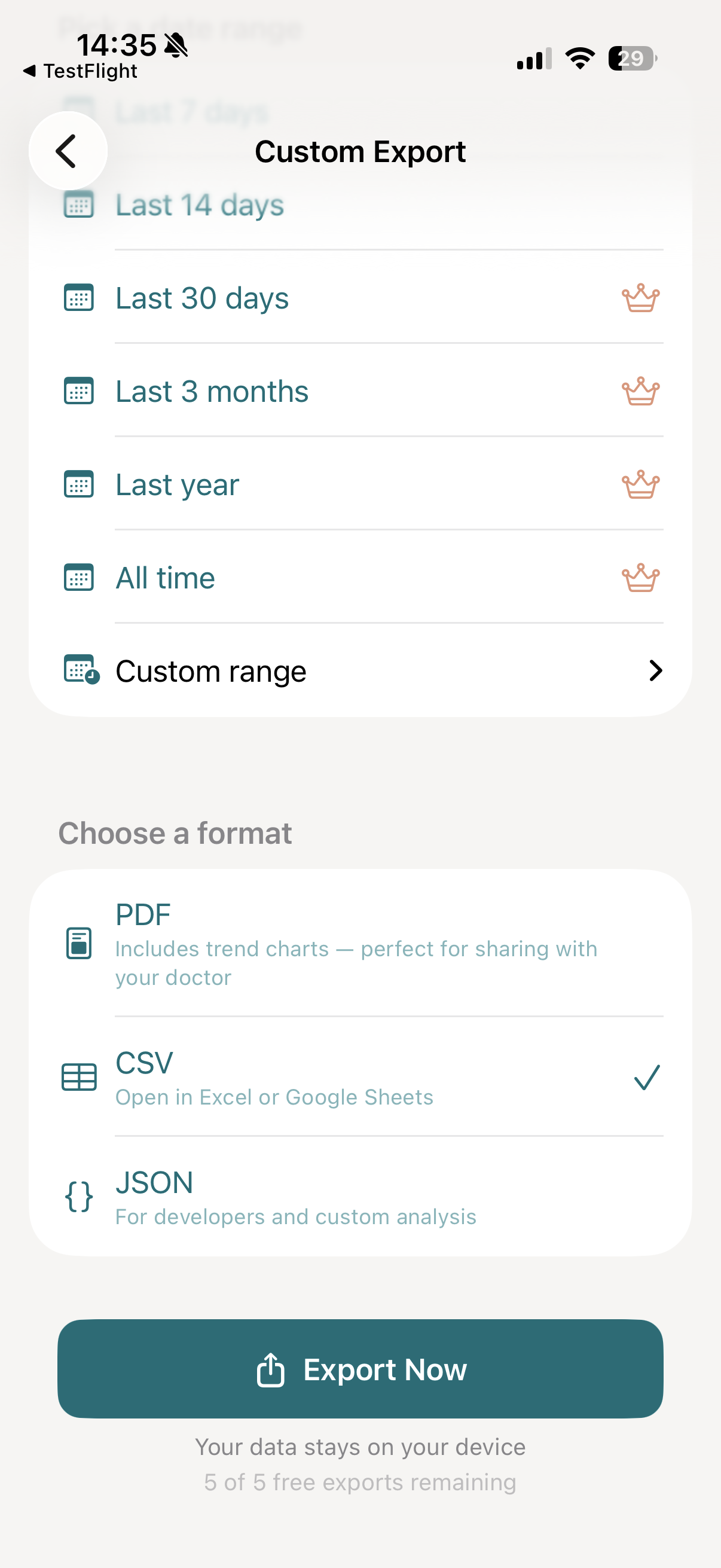
Step 6: Tap Export Now
Tap Export Now. vitalina reads your Apple Health data and generates a clean CSV file - usually within a few seconds, even for months of data.
Step 7: Open in Excel or share
Preview the file, then tap Export to open the iOS share sheet. From there you can:
- AirDrop to your Mac and double-click to open in Excel
- Save to Files or iCloud Drive
- Email to yourself or your care team
- Upload to Google Drive to open as a Google Sheet
CSV column schemas
vitalina writes one single-schema table per kind of health data. Each table has a fixed set of columns with clear headers and lives in its own .csv file - ready to use in Excel or Google Sheets without any reformatting.
Health Records
Heart Rate, Steps, Blood Pressure, Weight, and more
DateISO 8601 timestamp (e.g. 2026-04-20T08:05:00Z)TypeData type name (e.g. Heart Rate, Blood Pressure Systolic)ValueNumeric measurementUnitUnit of measurement (bpm, mmHg, count, kg, %, ...); percentages run from 0 to 100SourceApp or device that recorded the dataDeviceHardware device name (if available)health-records-sample.csv - open this file in Excel or Google Sheets to see the exact format.
Sleep Analysis
Nightly sleep sessions with stage breakdowns
DateNight date (yyyy-MM-dd)Total SleepTotal sleep duration (h:mm)Time in BedTotal time in bed (h:mm)REMREM sleep duration (h:mm)REM %REM as percentage of total sleepDeepDeep sleep duration (h:mm)Deep %Deep as percentage of total sleepCoreCore (light) sleep duration (h:mm)Core %Core as percentage of total sleepAwakeTime awake during the night (h:mm)Heart RateAverage sleeping heart rate (bpm)Respiratory RateAverage respiratory rate (breaths/min)SourceRecording app or devicesleep-sample.csv - open this file in Excel or Google Sheets to see the exact format.
Workouts
Individual workout sessions with performance metrics
DateISO 8601 start timestampTypeWorkout type (Running, Cycling, Swimming, ...)DurationElapsed time (mm:ss or h:mm:ss)Distance (km)Total distance in kilometersEnergy (kcal)Active calories burnedAvg HRAverage heart rate (bpm)Min HRMinimum heart rate (bpm)Max HRMaximum heart rate (bpm)CadenceSteps or revolutions per minuteElevation Gain (m)Meters climbedTemperature (°C)Ambient temperatureSourceRecording app or deviceActivity Type IDHealthKit's numeric workout code (37 = Running) - locale-stable, unlike the localized Type columnDuration (s)Elapsed time as plain seconds, ready for sums and averagesworkouts-sample.csv - open this file in Excel or Google Sheets to see the exact format.
Empty cells mean the metric was not recorded for that entry. Most spreadsheet apps handle this gracefully - you can filter or sort without any issues.
Multi-table exports arrive as a zip bundle
Because every .csv file holds exactly one table, an export that produces several tables - an "Export All" report combining metrics, sleep, and workouts, or an ECG export with its waveform data - arrives as a single zip archive. Double-click it on Mac or Windows and you get one folder with one .csv per table, plus a metadata.json that lists every file with a stable section id and row count - so scripts can identify each table without matching on column names. Its timeWindow gives the export's exact bounds as ISO 8601 timestamps: start is inclusive and end is exclusive, so an export of July 1-31 ends at 00:00 on August 1.
The same applies when you turn on the optional patient details (name, date of birth, report title): they travel in metadata.json, never inside the data tables, so you can delete or withhold that one file without touching a single measurement. A single-metric export without personal details stays a plain .csv, exactly as before.
CSV vs PDF vs JSON - which format should you use?
CSV - for spreadsheets and data analysis
Best when you want to open your health data in Excel, Google Sheets, or Numbers. Create charts, pivot tables, or filter by date. Also works for importing into databases, R, Python, or other data tools. This is the format most people need when they search for "export Apple Health data to Excel".
PDF - for doctors and appointments
Best when you need to share a report with your doctor. Includes trend charts, formatted tables, and clean layout your care team can read immediately. Print it or email it before your appointment. Learn more about PDF export →
JSON - for developers and automation
Best for developers building custom dashboards, data pipelines, or automated analysis. Structured format with nested objects, sorted keys, and pretty-printed output. Import directly into JavaScript, Python, R, or any programming language.
How much does CSV export cost?
vitalina is free with 5 unique exports, all three formats (CSV, PDF, JSON), and date ranges up to 14 days. vitalina Pro is a one-time purchase from €3.99 (max €4.99 by region, no subscription) that unlocks unlimited exports, extended date ranges up to all time, and Shortcuts automation. Re-exporting the same configuration is always free.
Frequently asked questions
Can you export Apple Health data to Excel?
Yes. vitalina exports Apple Health data as CSV files, which open directly in Microsoft Excel, Google Sheets, and Apple Numbers. CSV is the universal spreadsheet format - double-click the file and it opens with all columns and rows ready to use. No conversion or import wizard needed.
Can you export Apple Health data to CSV?
Yes. Apple Health's built-in export only produces an unfiltered XML dump of your entire health history. vitalina lets you pick specific metrics and date ranges and export them as clean, standards-compliant CSV files - ready for Excel, Google Sheets, or any data tool.
What data is included in the CSV export?
vitalina can export 100+ health metrics as single-schema CSV tables: Health Records (heart rate, blood pressure, steps, weight, blood oxygen, and more), Sleep Analysis (nightly sessions with REM, deep, and core sleep breakdowns), Workouts (individual sessions with duration, distance, heart rate, cadence, elevation, and a numeric activity-type code), and ECG summaries with full waveform traces. Each table is its own .csv file with the header on line 1. You choose which metrics to include.
Does the CSV file work with Google Sheets?
Yes. The CSV files use RFC 4180 formatting and UTF-8 encoding, which Google Sheets handles natively. Upload to Google Drive and it opens as a spreadsheet automatically, or use File → Import in an existing sheet.
Why is my CSV export a zip file?
Each .csv file vitalina produces holds exactly one table, so it opens in Excel or pandas with zero preprocessing. When an export contains more than one table (an Export All report, or an ECG export with waveforms) or includes your optional personal details, the files are packaged into a single zip archive. Unzip it (double-click on Mac or Windows) to get one folder with one .csv per table plus a metadata.json that lists them. A single-metric export without personal details stays a plain .csv file.
Is the CSV export free?
Yes. CSV export is available for free with up to 5 unique exports and date ranges up to 14 days. vitalina Pro (a one-time purchase, no subscription) unlocks unlimited exports and extended date ranges up to all time.
Is my health data safe when I export to CSV?
Yes. vitalina processes everything locally on your iPhone. Nothing is uploaded to any server. There is no account, no cloud storage, and no analytics. The CSV file stays on your device until you choose to share it.
Can I analyze my CSV export with ChatGPT?
Yes. Upload your CSV file to ChatGPT and it can summarize trends, calculate averages, create charts, and spot patterns in your health data. Not sure what to ask? See our ready-to-use ChatGPT prompts for health data →
What languages does vitalina support?#
vitalina is fully localized in 7 languages - English, German, Spanish, French, Portuguese (Brazil), Japanese, Russian. The app interface and every Apple Health metric name are translated, so your exports come out in your language. This page is in English, but the app follows your device language with no setup required. For example, Heart Rate appears as:
| Language | Heart Rate |
|---|---|
| EnglishEnglish | Heart Rate |
| GermanDeutsch | Herzfrequenz |
| SpanishEspañol | Frecuencia cardíaca |
| FrenchFrançais | Fréquence cardiaque |
| Portuguese (Brazil)Português (Brasil) | Frequência cardíaca |
| Japanese日本語 | 心拍数 |
| RussianРусский | Пульс |
The exact CSV columns, documented
vitalina's CSV exports use a defined schema. The Export Format Reference lists every column - Date, Type, Value, Unit, Source, and Device - plus the richer Sleep Analysis and Workout layouts, and a searchable dictionary of every exportable Apple Health metric.
Export guides by metric
Step-by-step tutorials for exporting specific health metrics from Apple Health.
- Export Heart RateResting, active, and HRV for your cardiologist.
- Export Blood PressureSystolic and diastolic readings for your doctor.
- Export Sleep DataSleep stages and duration for sleep specialists.
- Export WorkoutsSessions with duration, calories, and heart rate.
- Export WeightWeight, BMI, and body composition for your GP.
- Export ActivitySteps, distance, and energy for physical therapy.