
How to Use Quick Exports and Recent Exports
Last updated: October 11th, 2026

By Martin
Co-founder, vitalina
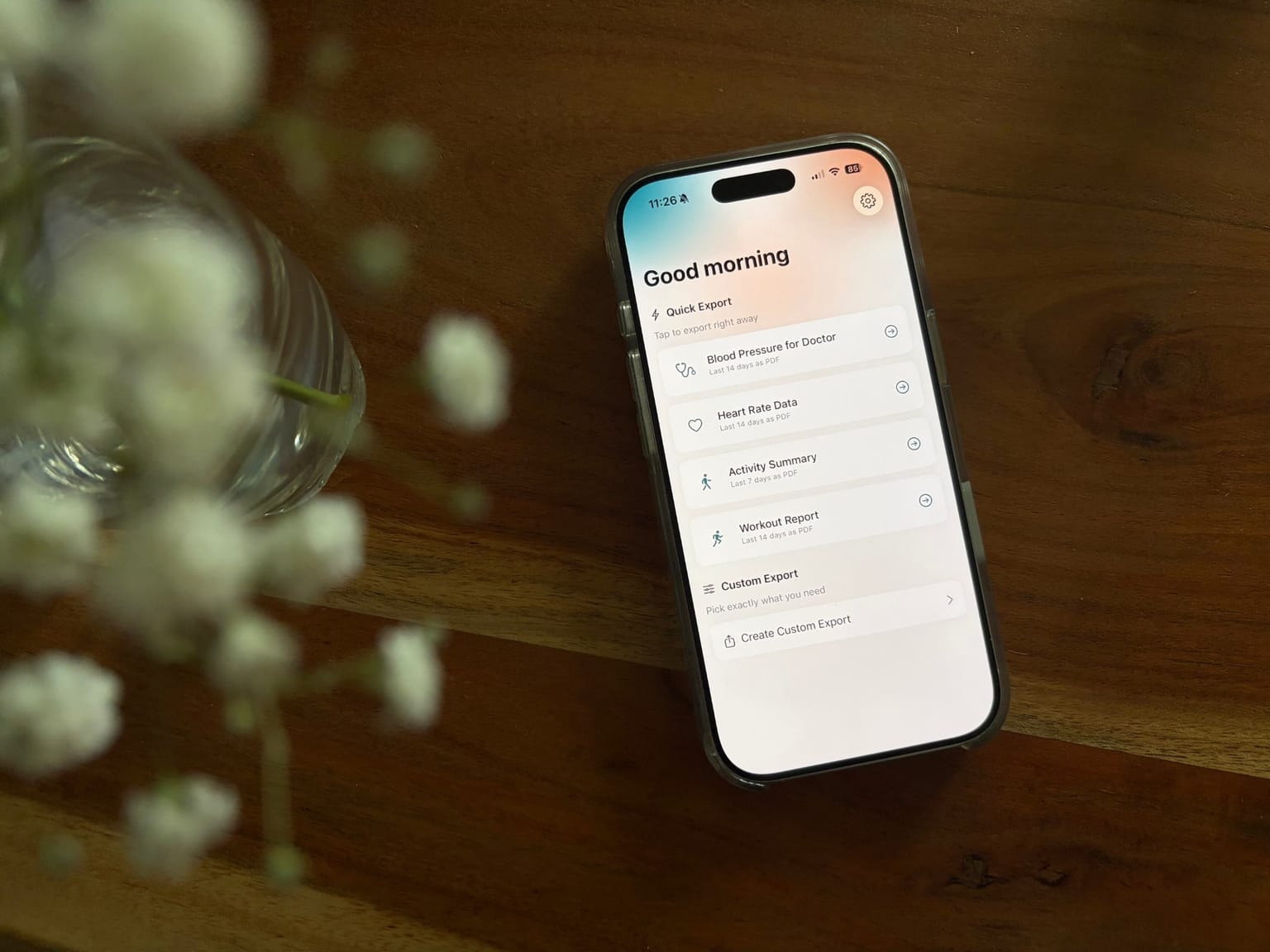
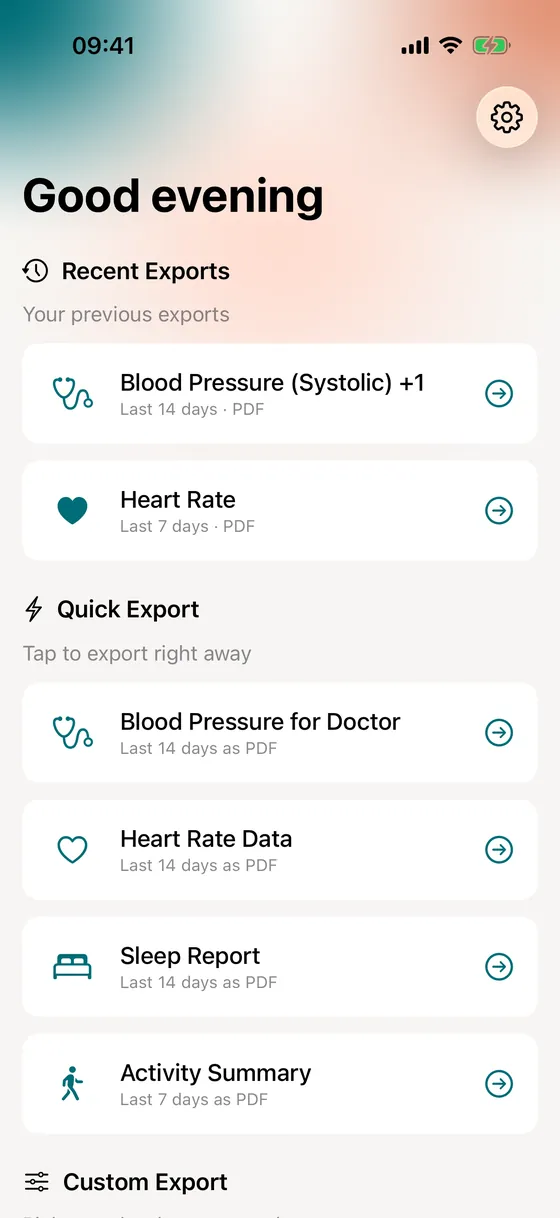
vitalina's home screen has two shortcuts so you don't have to build an export from scratch. Quick Export creates a ready-made PDF report, such as Blood Pressure for Doctor, with a single tap. Recent Exports remembers your last five exports, so you can run the same report again with one tap and get your latest Apple Health data.
What's on the home screen?
From top to bottom, the home screen has three sections:
- Recent Exports: your last five exports, newest first. This section appears after your first export.
- Quick Export: ready-made PDF reports that start with one tap.
- Custom Export: tap Create Custom Export to pick exactly which metrics, date range and format you want. The step-by-step export tutorial walks through it.
Which Quick Export templates are there?
There are six templates. Each one creates a PDF report that is ready to hand to your doctor.
| Template | What it includes | Date range |
|---|---|---|
| Blood Pressure for Doctor | Systolic and diastolic blood pressure | Last 14 days |
| Heart Rate Data | Heart rate | Last 14 days |
| Sleep Report | Sleep | Last 14 days |
| Activity Summary | Steps, active energy and distance | Last 7 days |
| Workout Report | Workouts | Last 14 days |
| Weight Tracking | Weight | Last 14 days |
vitalina shows up to four templates, in the order above, and only for metrics that have data in Apple Health. With no health data yet, you'll see No health data found yet instead. All templates cover 14 days or less, so they work in the free version.
The walkthrough · 5 steps · ~1 min
How to run a Quick Export and repeat it, step by step
Open vitalina's home screen
Open vitalina. The home screen shows Recent Exports at the top once you have exported at least once, then Quick Export, then Custom Export.
Using vitalina for the first time? Download it from the App Store and allow read-only access to Apple Health when asked. Your data never leaves your iPhone.
Tap a Quick Export template
Under Quick Export, tap a template such as Blood Pressure for Doctor. The export starts right away, with no metrics, dates or format to pick.
A progress card shows while vitalina reads your data. Tapped the wrong template? Tap Cancel.
Name the report (optional)
In the preview, tap Your details (the person card icon, top right) and type a name in the This report field, for example Cardiology checkup. The name becomes the heading of the PDF and is saved with the export under Recent Exports.
If you skip it, Recent Exports lists the export by its first metric plus how many more it includes, for example "Blood Pressure (Systolic) +1".
Share or save the PDF
Tap Export to open the iOS share sheet, then save the PDF to Files, email or AirDrop it, send it in Messages, or print it.
Run it again from Recent Exports
Next time, tap the same export under Recent Exports. vitalina runs it again with the same metrics, date range, format and report name, and reads your latest data from Apple Health.
Each row shows the export's name, its date range and its format, so you can tell your reports apart at a glance.
What happens when I tap a recent export?
vitalina runs the export again straight away, with the same metrics, date range, format and report name. The date range works in one of two ways:
- Rolling ranges like Last 7 days or Last 14 days always end today. Tap a "Last 14 days" export a month later and you get the latest 14 days, which makes it a good fit for a report you bring to every appointment.
- Custom date ranges stay fixed. Tap the export again and you get exactly the same dates, for example to send a report a second time.
A recent export only remembers its settings, never your health data. vitalina reads the data fresh from Apple Health on your iPhone each time you run it.
How do I remove a recent export?
Swipe the row to the left and tap the red trash button. Changed your mind? Tap the row to slide it back. Removing an export only takes it off the list: files you already saved or sent stay where they are, and your Apple Health data is not touched.
How do I make my own one-tap export?
Quick Export templates are fixed and always create a PDF. To repeat any other export with one tap, for example a CSV of your glucose readings or a 30-day report (Pro) with several metrics, set it up once with Create Custom Export. It is added to Recent Exports, and from then on it works just like a Quick Export. Give it a name in the preview so it is easy to spot in the list.
Want it to run on a schedule instead? vitalina Pro works with Apple Shortcuts. See the Shortcuts automation guide →
Frequently asked questions
Why don't I see a Quick Export for my metric?
vitalina has six Quick Export templates and shows up to four of them, only for metrics that have data in Apple Health. If you just started recording a metric, its template can take up to a week to appear. For any other metric, use Create Custom Export: after the first run it stays under Recent Exports for one-tap reuse.
Can I change what a Quick Export includes, or export it as CSV or JSON?
No. Quick Export templates are fixed and always create a PDF. For other metrics, a different date range, or CSV or JSON, create a custom export once. It is added to Recent Exports, so from then on it is one tap away too.
How many recent exports does vitalina keep?
The five most recent. Every export you start from Quick Export or Custom Export is added to the top of the list, and the oldest one drops off. Running an export again from Recent Exports does not add a new row.
Does Recent Exports store my health data?
No. A recent export only remembers its settings: the metrics, date range, format and report name. Your health data stays in Apple Health and is read fresh every time you run the export, on your iPhone.
Do Quick Exports and Recent Exports count toward the free exports?
The free version includes 5 unique exports. Running the same export again with the same date range never uses up another one. Rolling ranges like Last 14 days move forward each day, so running one on a later day covers new dates and counts as a new export. vitalina Pro, a one-time purchase from €3.99 with no subscription, removes the limit.