
How to Automate Apple Health Exports with Siri Shortcuts
Same export, every time you need it? Set it up once, then run it with a single tap or ask Siri.

By Marina
Co-founder, vitalina · April 21, 2026
One tap to export
No setup each time - just tap the notification
Ask Siri
"Export health data with vitalina"
Chain with other actions
Save to Files, send via email, upload to a server
Any format
Export as PDF, CSV, or JSON
Before you start
- •Download vitalina from the App Store and open it once to grant Apple Health access
- •Upgrade to vitalina Pro - Shortcuts automation is a Pro feature (one-time purchase, no subscription)
- •iPhone with iOS 18 or later
Step-by-step setup
Follow these 9 steps to create a recurring health data export automation.
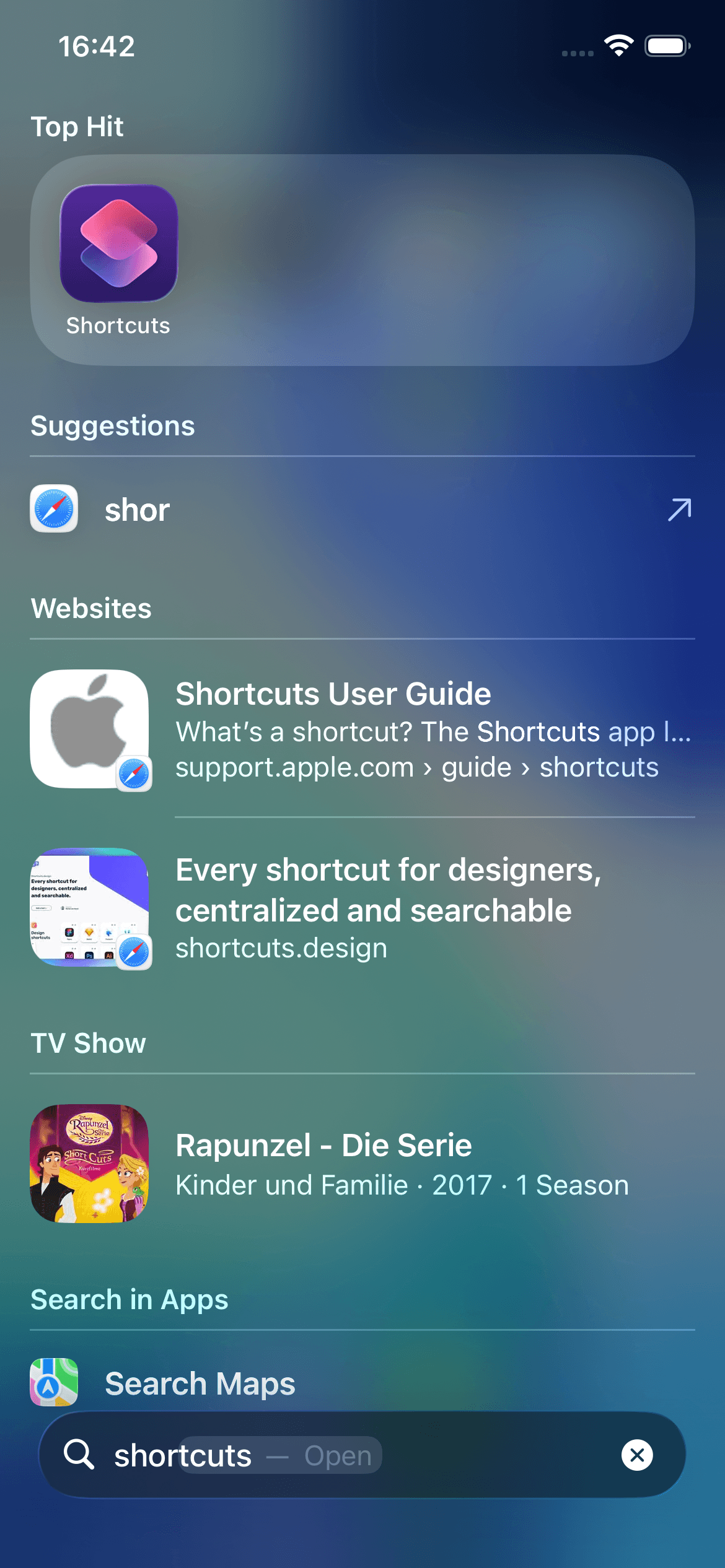
Open the Shortcuts app
Search for "Shortcuts" using Spotlight or find it on your Home Screen.
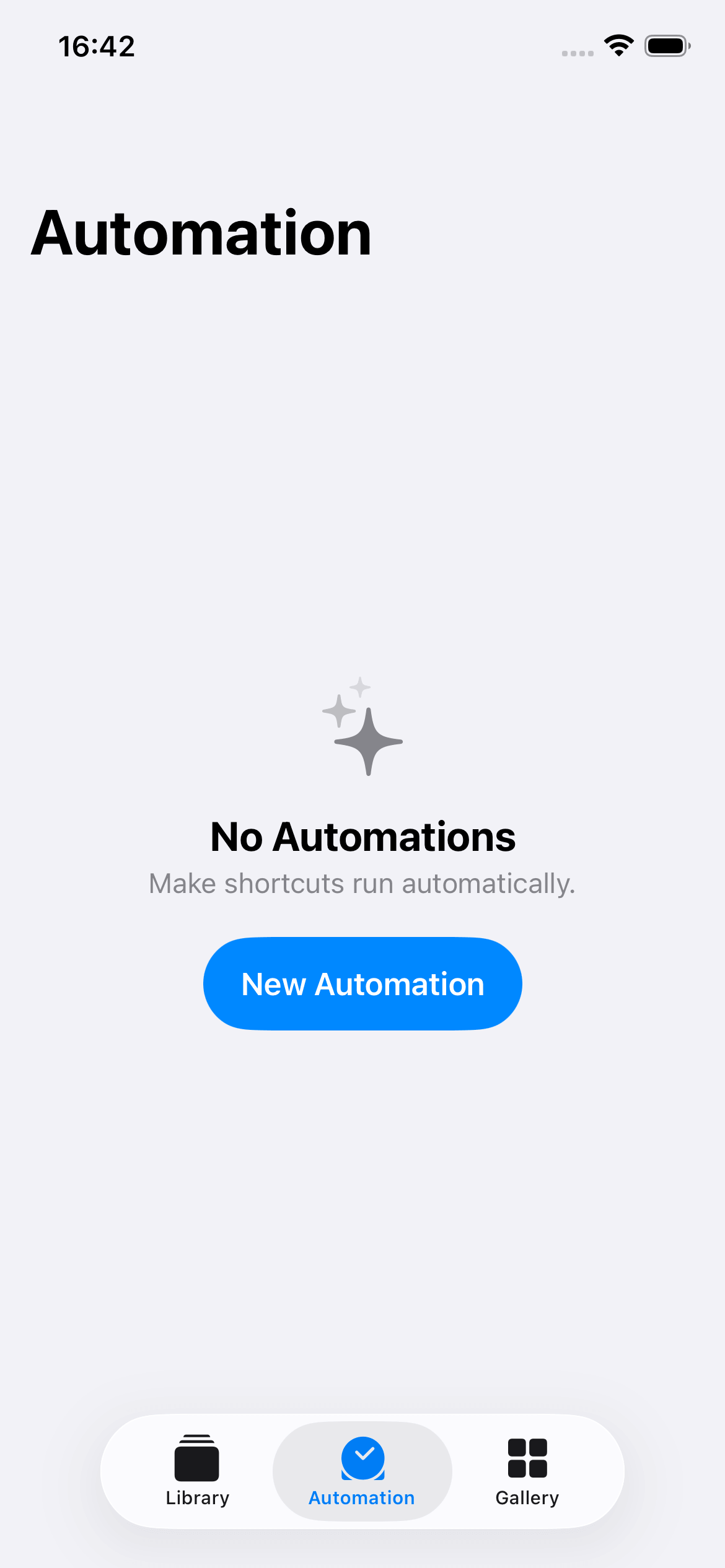
Go to the Automation tab
Tap "Automation" at the bottom, then tap "New Automation".
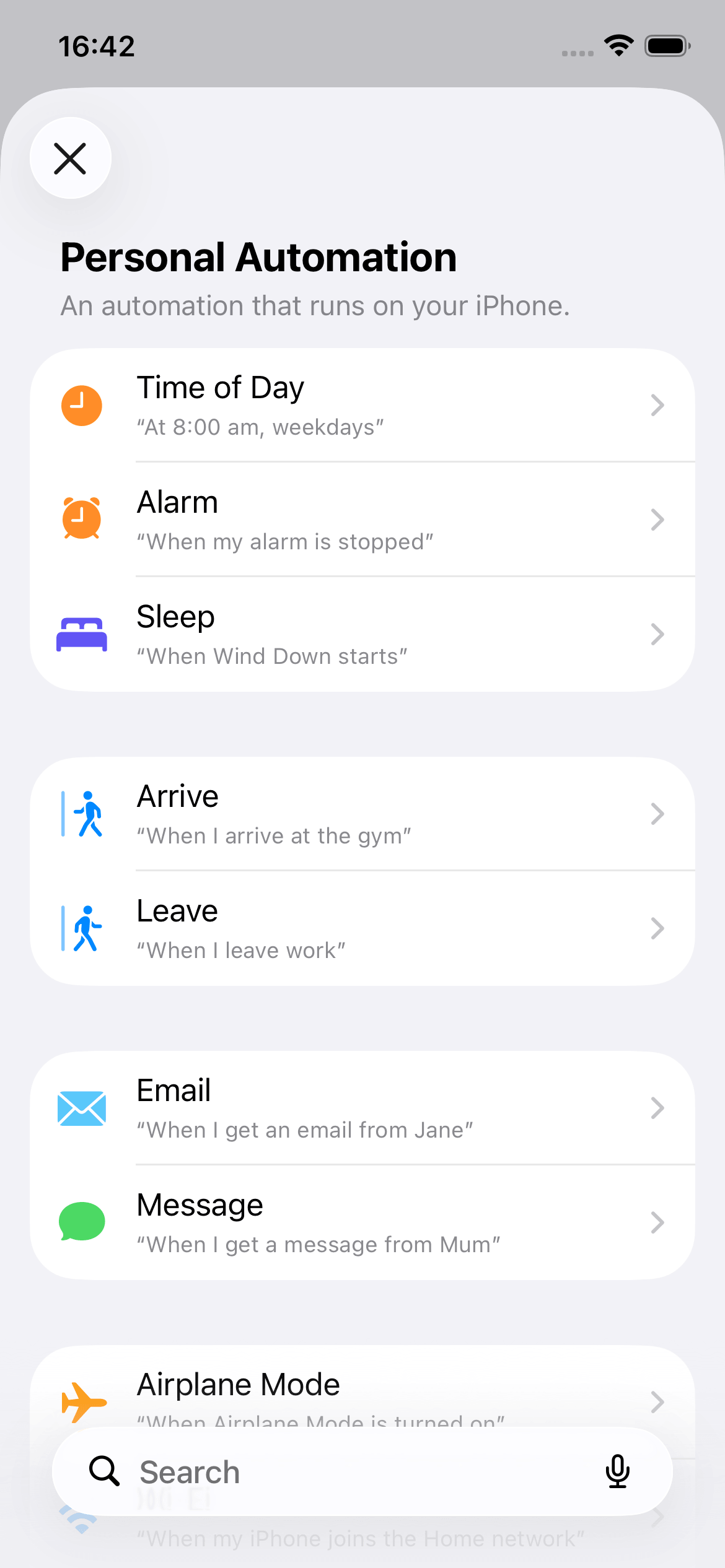
Pick a trigger
Choose when your export should run - for example "Time of Day".
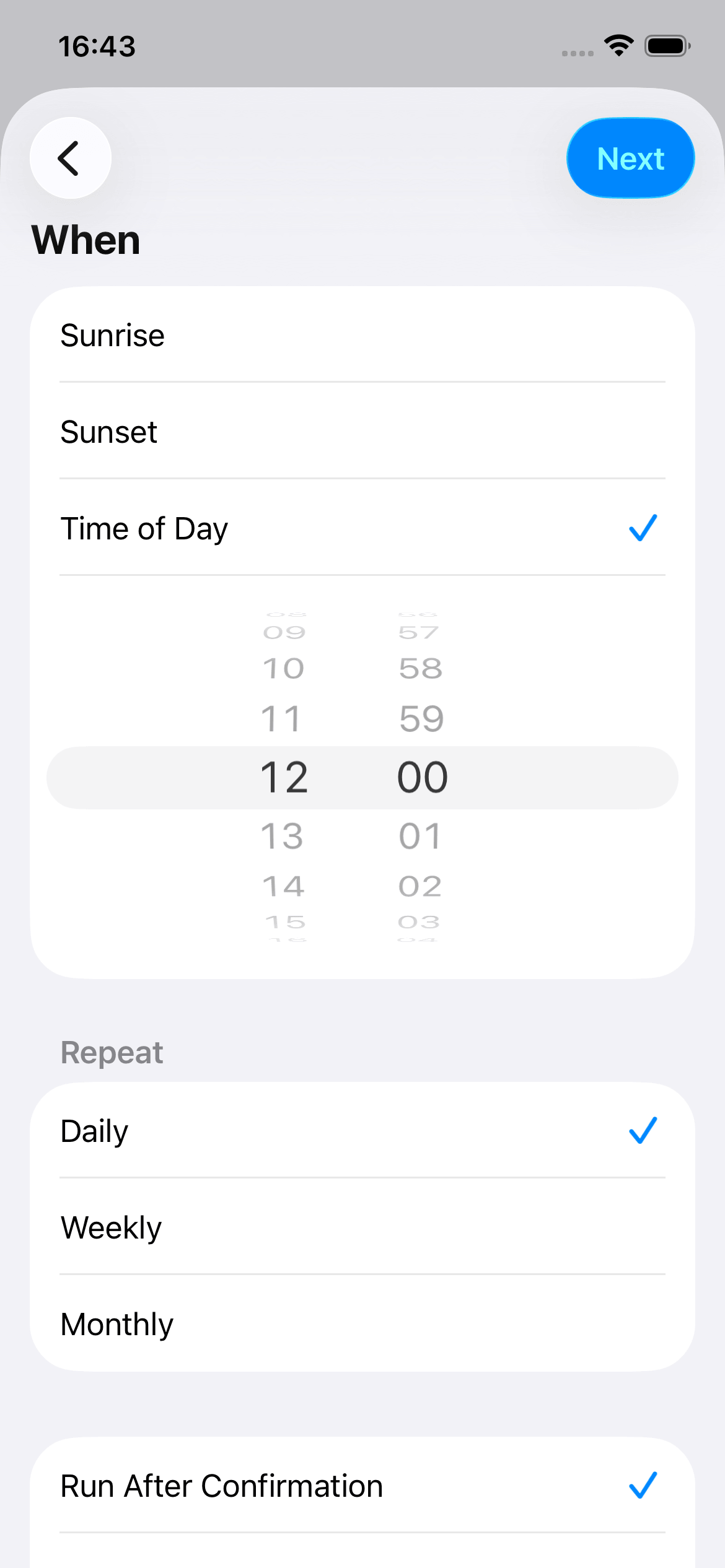
Set the schedule
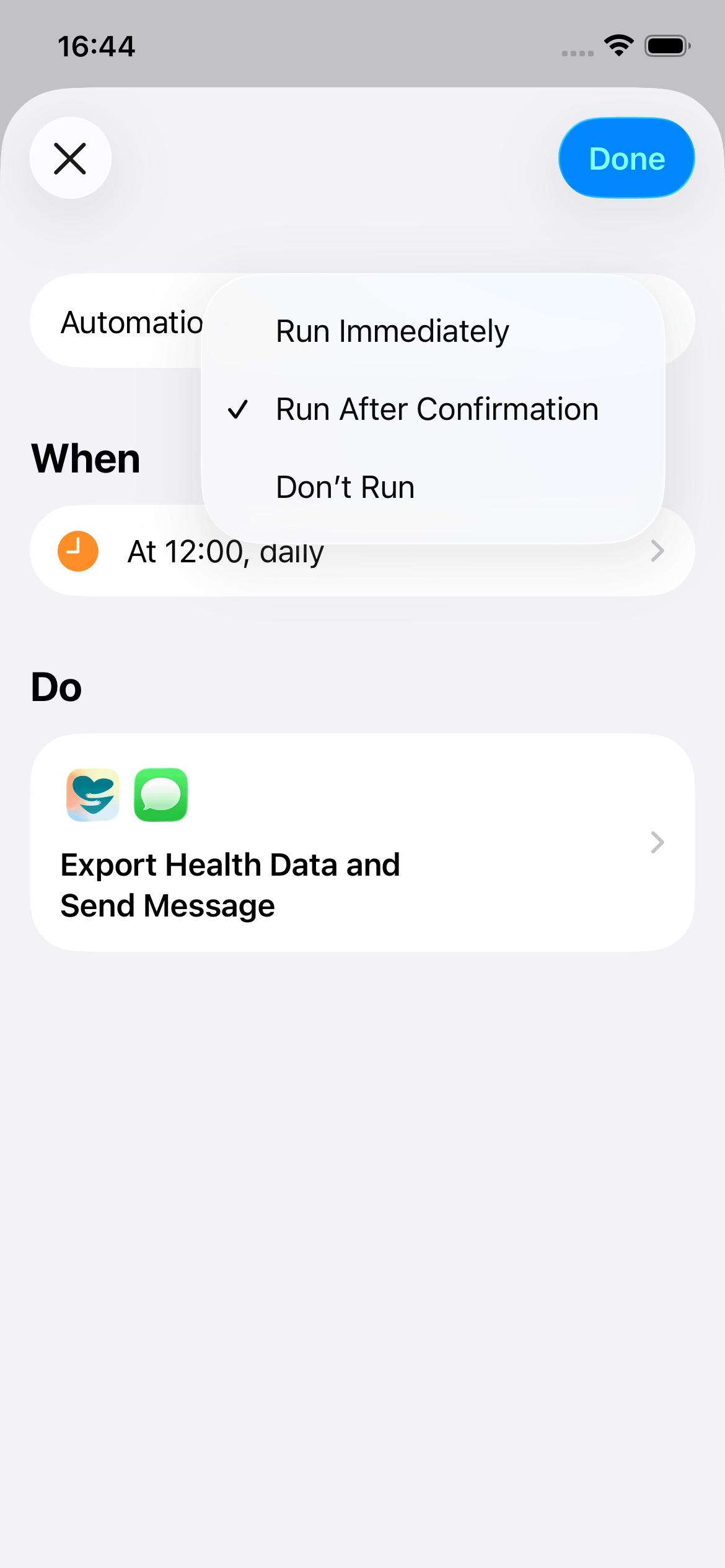
Pick the time and repeat frequency. Enable "Run After Confirmation" - Apple Health data can only be accessed when your iPhone is unlocked.
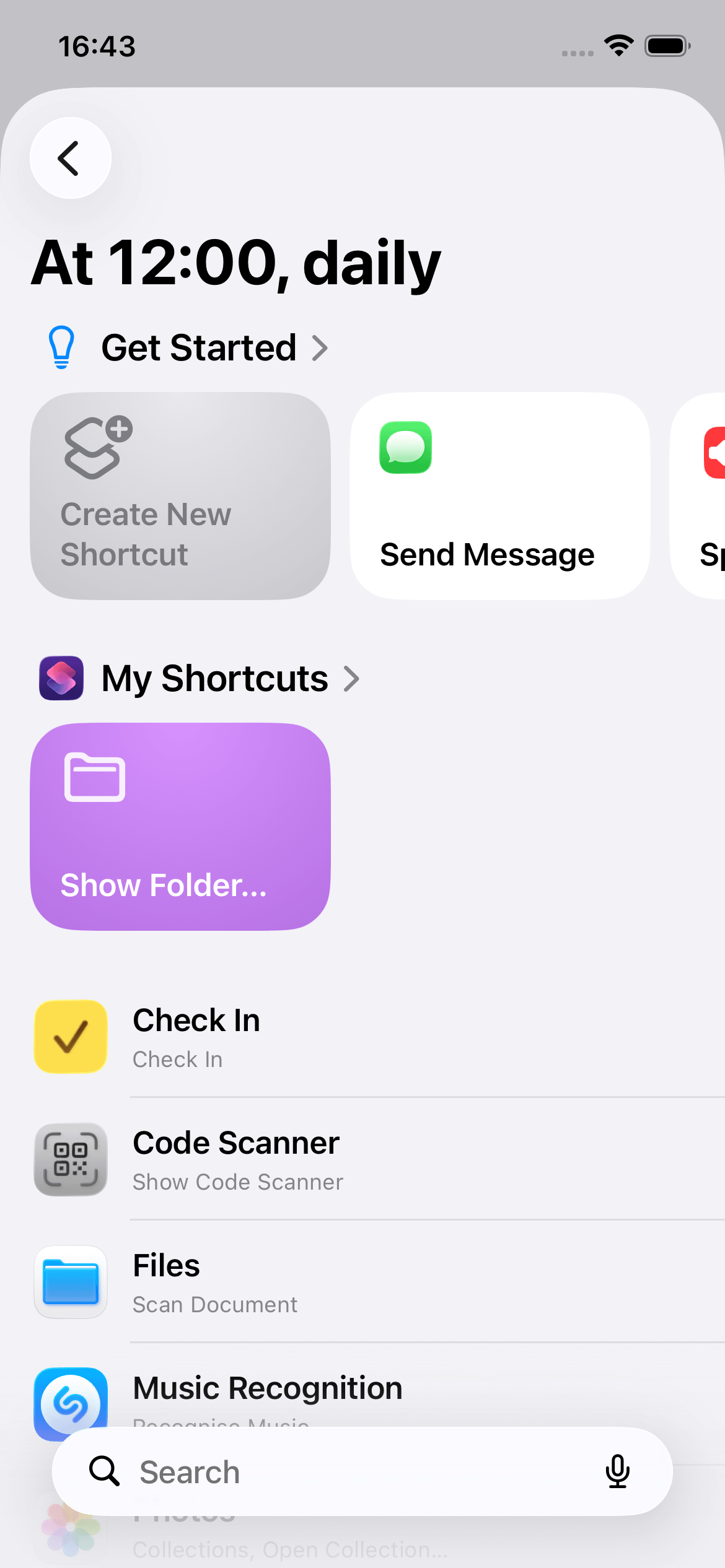
Create a new shortcut
Tap "Create New Shortcut" to start building your automation.
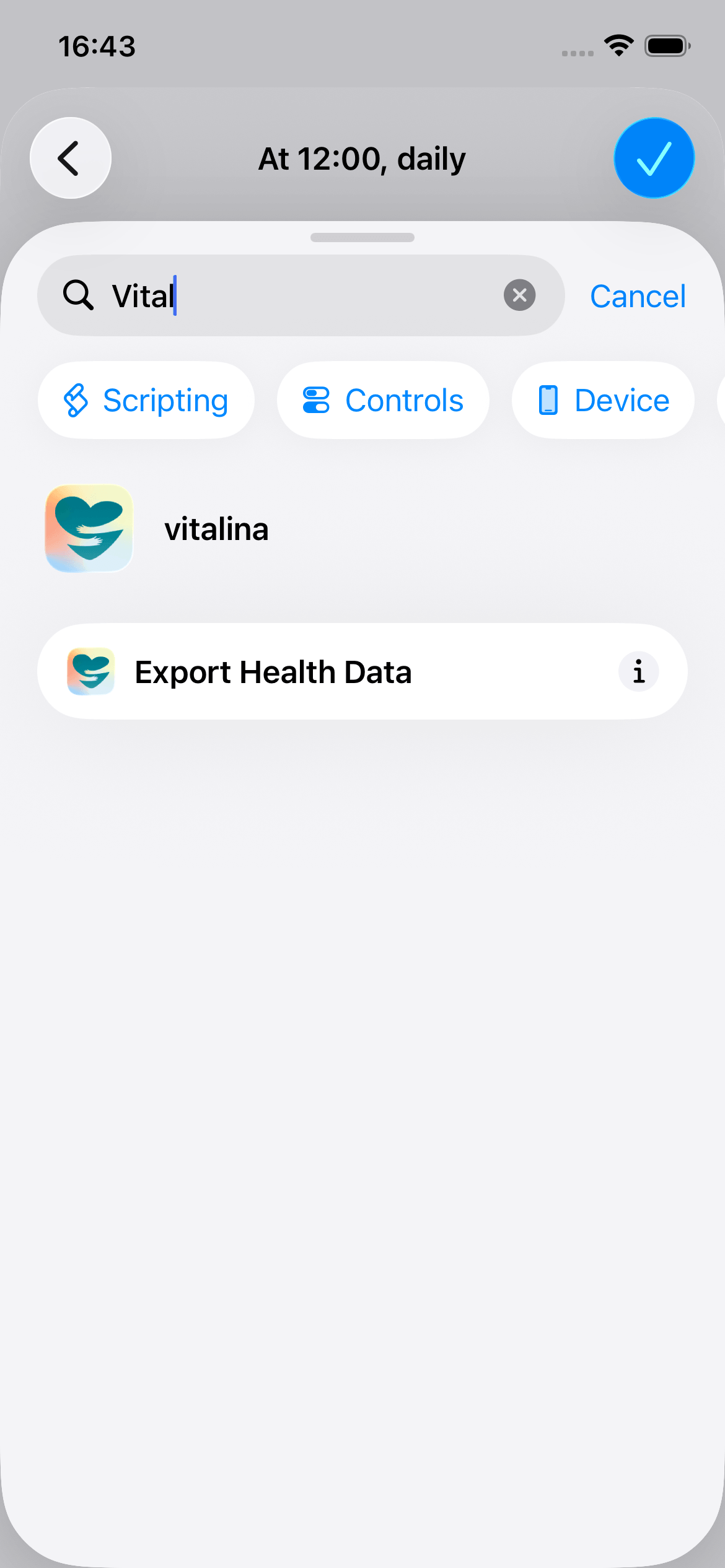
Find vitalina
Type "vitalina" and tap "Export Health Data".
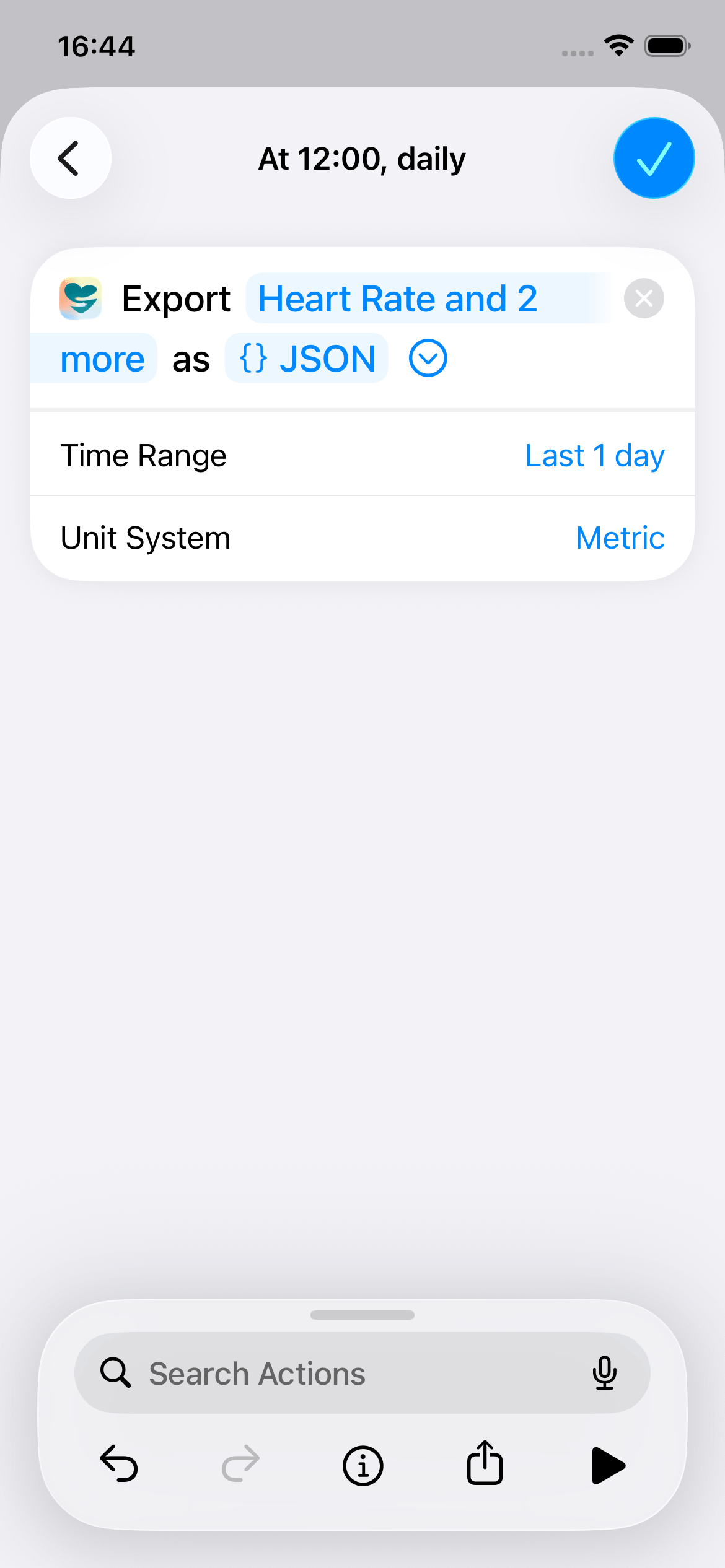
Configure your export
Pick your data types, format, time range, and unit system.
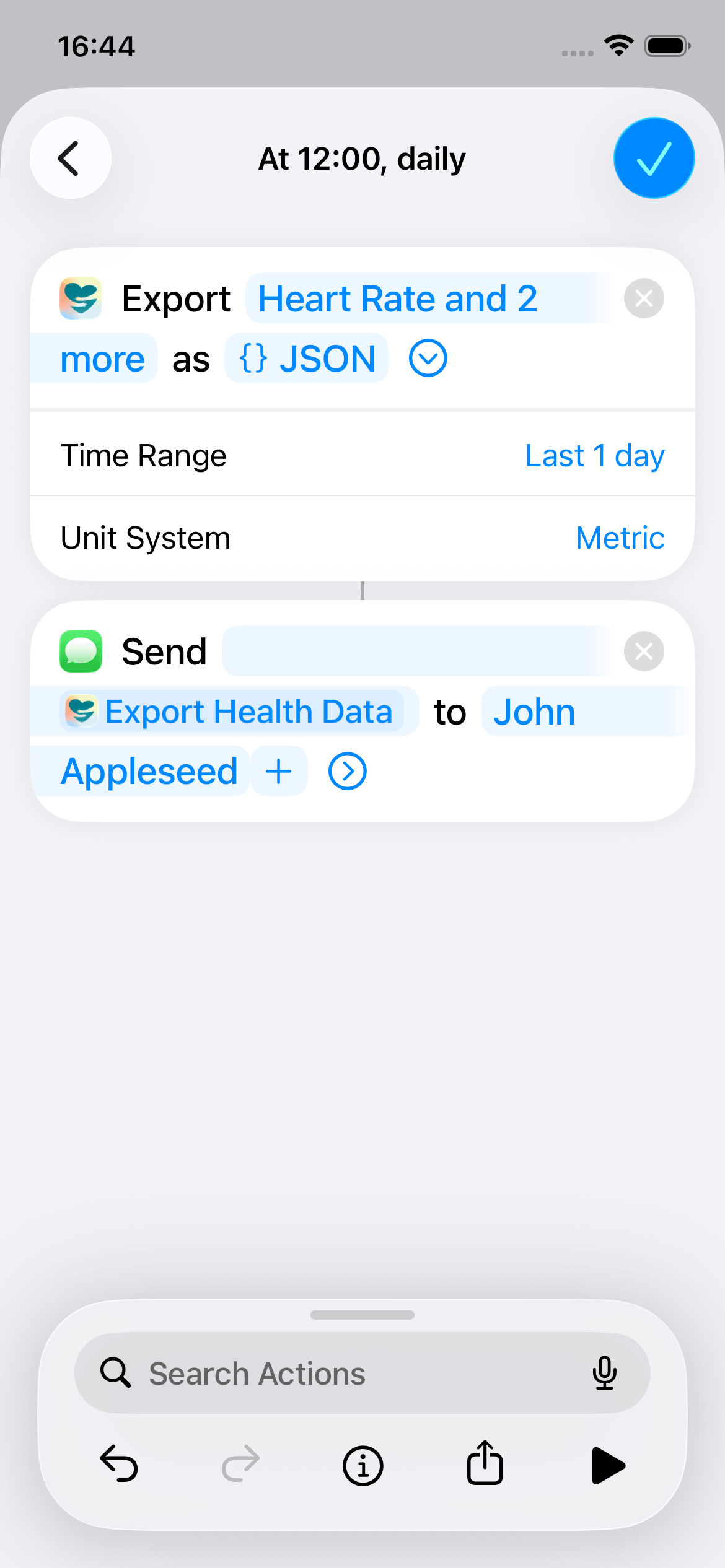
Chain more actions
Use the search bar at the bottom to find and add more actions - for example, "Send Message" to share the export.
Enable "Run After Confirmation"
Make sure "Run After Confirmation" is enabled. Apple Health data can only be accessed when your iPhone is unlocked.
Good to know
- •Your iPhone must be unlocked for health data access. That is why "Run After Confirmation" is important - you will get a notification and tap to confirm.
- •Time ranges use presets (e.g. last 7 days, last 30 days). The automation always exports the most recent data relative to when it runs.
- •The exported file can be passed to Save, Share, or Mail actions - chain as many Shortcuts actions as you like.
Ideas for automations
Weekly report for your doctor
Every Sunday at 8 PM, export the last 7 days of blood pressure and heart rate as PDF. Save to your "Medical" folder in iCloud Drive so it is ready for your Monday appointment.
Daily sleep log
Every morning at 9 AM, export last night's sleep data as CSV and email it to yourself. Build up a personal sleep archive in your inbox.
Monthly fitness summary
On the 1st of each month, export the last 30 days of workouts and activity as JSON. Pass it to a ChatGPT prompt for a training review.
FAQ
Can I automate Apple Health exports?
Yes. vitalina integrates with Siri Shortcuts so you can set up recurring exports that run on a schedule. Export heart rate, sleep, workouts, and 100+ other metrics as PDF, CSV, or JSON automatically.
Does the automation work in the background?
Apple Health data requires your iPhone to be unlocked. Set your automation to "Run After Confirmation" and you will get a notification at the scheduled time. Tap it to run the export.
Can I chain vitalina exports with other Shortcuts actions?
Yes. After the vitalina export action, you can add any Shortcuts action - save the file to iCloud Drive, send it via email or Messages, upload to a server, or pass it to another app.
Is Shortcuts automation a Pro feature?
Yes. Siri Shortcuts integration is part of vitalina Pro, a one-time purchase with no subscription.
Can I use Siri to trigger an export?
Yes. Once you have set up a shortcut, you can say "Export health data with vitalina" to Siri and it will run your configured export.
Ready to automate your health exports?
Download vitalina and set up your first Shortcuts automation in minutes.